If you’re like me, you spend most of your workday in Claude writing, researching, analyzing data, coding, so the last thing you want when hiring comes up is to stop, open your ATS, and catch up on who applied across your roles.
With Dover MCP connected, Claude can see your jobs, candidates, applicant scores, and pipeline in Dover, and it can update them too. Hiring comes to where you already work. This post covers workflows for running hiring directly from Claude.
TLDR:
-
Dover MCP connects your AI tool to your Dover data including jobs, candidates, applicant scores, tags, notes, and pipeline stages, so it can work with real hiring data instead of text you paste in.
-
It works with Claude, ChatGPT, Cursor, Codex, and any other MCP-compatible tool. I use Claude a lot.
-
Gmail and Google Calendar are optional add-ons. Connect them if you also want Claude to draft candidate emails and find interview times.
-
My workflows cover the weekly candidate pipeline, screening, interview prep, end-of-day debriefs, and closing the loop with candidates.
-
Claude drafts and suggests. I still make every hiring decision and review every email before it’s sent.
See It in Action
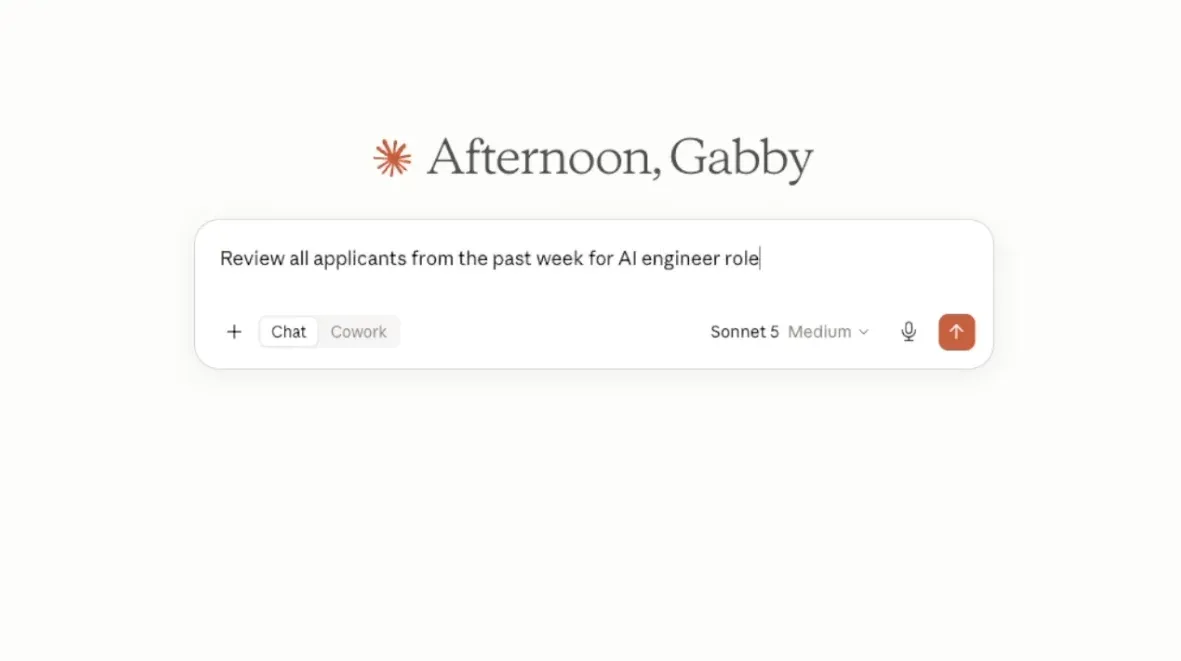
Here’s a quick demo I made of the Dover MCP and how it works with Claude.
Why I Run Hiring from an AI Tool
Most hiring work isn’t hard. It’s scattered. The applicants are in the ATS, the interview notes are in a doc, the availability is on the calendar, and the follow-ups are in the inbox. Each step is small, but switching between all of them is what makes hiring feel like a second job.
Before MCP, using AI recruiting tools inside an ATS meant copying a resume into a chat and asking what it thought. That helped, but Claude only saw what I pasted, and I still had to go back to Dover to act on the answer.
The Model Context Protocol changes that. It’s an open standard that lets AI tools connect directly to other software. With Dover connected, Claude can:
-
List my active jobs and read each job’s full description and requirements
-
Pull applicants ranked by AI applicant score, with the pros and cons behind each score
-
Find candidates by name, email, job, stage, source, or status
-
Move candidates between pipeline stages
-
Create and apply tags, and add notes to a candidate’s profile
-
Pull interview prep, including the resume, internal notes, and earlier interview feedback
-
Add new candidates and create new jobs
Everything Claude changes lands in Dover, so the rest of the hiring team sees the same pipeline I do.
| Hiring Task | Before MCP | With Dover MCP |
|---|---|---|
| Pipeline review | Log into Dover, scan each role manually | Ask Claude for a summary across all roles and stages |
| Screening applicants | Copy resume text into a chat window, paste it back to act | Claude reads scores and pros/cons directly from Dover |
| Moving candidates | Update candidate in each job in Dover one by one | One prompt moves a filtered list to the next stage across multiple roles |
| Interview prep | Open Dover, find the profile, review resume, update interview questions | Claude pulls the resume, notes, and prior feedback in one brief |
| Post-interview debrief | Fill out a form or write notes separately per candidate | Talk it through with Claude; notes go directly onto each profile |
| Rejection emails | Write from scratch or send a generic template | Claude drafts from your interview notes; you review before sending |
| Adding sourced candidates | Switch to Dover, fill in the form manually | Describe the candidate in the chat; Claude adds them to the right job |
This goes beyond Claude. Dover MCP works with ChatGPT, Cursor, Codex, and any other MCP client that supports HTTP. If your team lives in a different AI tool, the same workflows apply. Setup details for each one are on the Dover AI page.
Claude MCP Setup
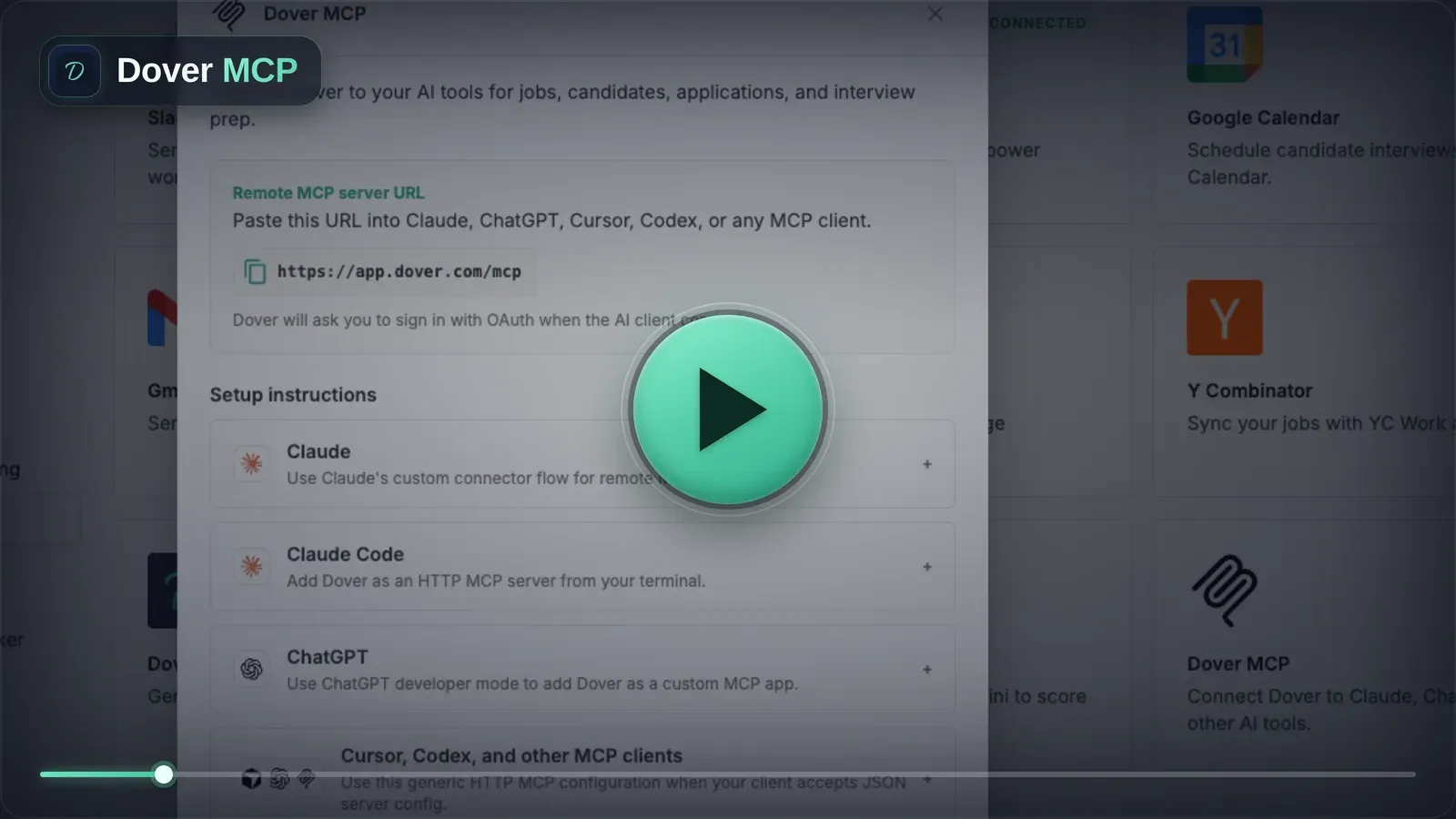
Connecting takes a few minutes. Follow the instructions in Dover, then add Dover from Claude’s connector directory and sign in.
That’s all you need. Everything in the next section except scheduling and email drafts works with Dover alone.
Optional: I also have Gmail and Google Calendar connected in Claude. With them, Claude can check my availability and draft candidate emails in the same conversation where it pulled the candidates. If you’d rather keep email and scheduling where they are, skip this step.
Workflows I Use to Stay on Top of Hiring
None of these are rigid scripts. They’re prompts I come back to, and I change the details each time. Copy them, then adjust the roles, stages, and thresholds to match your hiring process.
The Weekly Pipeline Check
I start the week by asking Claude for the big picture, before I open anything else.
“List all active candidates across my open roles, grouped by job and stage.”
“Which roles have the fewest candidates in late-stage interviews? Tell me where my pipeline is thinnest.”
In two prompts I know which roles are healthy, which need more sourcing, and where candidates might be waiting on us. For more on what a healthy funnel looks like, see our guide to building a startup hiring pipeline.
Catching Up on New Applicants
Screening is one of the biggest time investments in a startup hiring pipeline, especially as AI tools make it easier for applicants to apply at scale. AI applicant scoring (part of ATS Premium) scores every inbound application against the job requirements and explains each score, so I use Claude to read through that data faster.
“Pull everyone who applied to any of my jobs in the last 7 days. Group them by job and flag anyone with a score above 80.”
“Show me the top 20 applicants for the Software Engineer role, ranked by applicant score, with the pros and cons for each.”
When two or three people look strong on paper, I ask Claude to compare them:
“Compare my top 5 Product Designer applicants side by side against the job requirements. Who should I talk to first, and why?”
The AI scoring prompt is something that we built ourselves, but a score is still a signal, not a decision. I still open the profile of anyone I’m about to reject.
Take Actions on Candidates
This is the workflow that sold me on MCP. Once I’ve read the shortlist, I act on it without leaving the chat:
“For every Software Engineer applicant with a score above 80, tag them ‘Top Applicant’ and move them to Recruiter Screen.”
With Gmail connected, I add one more line: “…and draft an email from me inviting each of them to a call with our recruiter, Michelle.” One prompt can tag each candidate, move them, and draft an email to each. I can proofread every draft and customize it before I hit send.
Getting Interviews on my Calendar
With Google Calendar connected, Claude can find my open time and turn it into an email:
“Look at my calendar for next week and find three 45-minute slots. Then draft an email to each active candidate in Hiring Manager Screen for the Product Manager role, offering those times.”
I like offering times more than booking events directly, although I do love Dover’s scheduling links too. The candidate picks the slot that works for them, and I never have to reschedule an event I created for them. When they reply, I ask Claude to create the event.
Interview Preparation
I used to skim a resume in the two minutes before a call. Now I ask for a brief, similar to what some AI interviewer tools generate automatically:
“I’m interviewing Jordan Lee at 2pm. Give me a one-page brief: their background, how they fit the role, possible concerns, and five tailored questions to ask.”
Claude pulls the resume, internal notes, and any earlier interview feedback from Dover, so the questions build on what the team has already learned instead of repeating it. With my calendar connected, I can prep the whole day at once:
“For every interview on my calendar tomorrow, pull the candidate’s Dover profile and write me a short prep brief with suggested questions.”
I pair these briefs with an interview scorecard so everyone evaluates candidates against the same criteria.
Interview Debriefs
Feedback is most useful right after the interview, and that’s also when I’m least likely to open a form. So I talk it through with Claude instead, similar to how AI notetakers for recruiters capture notes during the call itself:
“I interviewed Jordan, Priya, and Sam today. Ask me how each one went, add my feedback as a note in Dover, and move the ones I want to advance to the next stage.”
Claude asks me questions one at a time, writes my rambling answers up as clean notes, and puts them on each candidate’s profile. I can even tag with “Top Candidate” or “Fast-Track” if I’m super excited about them.
Closing Out Candidates
Candidates remember how you rejected them long after they forget the interview. I want every candidate to hear back quickly, and with something more personal than a template.
“Of the candidates I interviewed today, list the ones I’m not moving forward and draft a warm, personal rejection email for each. I’ll mark them as rejected in Dover.”
Claude writes each rejection from my notes, so it can mention what we actually discussed. I review and send each email, then mark the candidates as rejected in Dover myself. The decision stays mine.
Every few weeks, I check that nobody slipped through the cracks just because I hate leaving things up in the air and I’m constantly multitasking.
“Show me every rejected candidate for the Account Executive role, so I can confirm we emailed each of them.”
Adding Candidates to a Job
Some of the best candidates never apply. They come from a coffee chat, a Slack message from a teammate, or a LinkedIn profile I find late at night. I add them the moment I think of them:
“I just met a great candidate at a meetup. Add Sam Rivera to the Founding Engineer role as sourced, and add a note summarizing our conversation: [my notes].”
“Here are five LinkedIn profiles my teammate referred. Add each one to the Senior Backend Engineer role as a referral.”
Referrals added this way go through Dover’s normal referral workflow, so referral tracking still works.
Opening a New Role
When a new role opens, I draft the description with Claude first, then create the job in the same chat:
“Create a Growth Marketer job in Dover with me as the hiring manager and a 60-day hiring timeline.”
Claude shows me the eligible hiring managers and recruiters before it creates anything. Creating a job sends setup emails to the interviewers, so I confirm the details first.
Copy My Prompts into Claude
Every prompt from this post in one place. Hit Copy, paste it into Claude, then swap in your own roles, names, and stages.
The Weekly Pipeline Check
- List all active candidates across my open roles, grouped by job and stage.
- Which roles have the fewest candidates in late-stage interviews? Tell me where my pipeline is thinnest.
Catching Up on New Applicants
- Pull everyone who applied to any of my jobs in the last 7 days. Group them by job and flag anyone with a score above 80.
- Show me the top 20 applicants for the Software Engineer role, ranked by applicant score, with the pros and cons for each.
- Compare my top 5 Product Designer applicants side by side against the job requirements. Who should I talk to first, and why?
Take Actions on Candidates
- For every Software Engineer applicant with a score above 80, tag them ‘Top Applicant’ and move them to Recruiter Screen.
Getting Interviews on my Calendar
- Look at my calendar for next week and find three 45-minute slots. Then draft an email to each active candidate in Hiring Manager Screen for the Product Manager role, offering those times.
Interview Preparation
- I’m interviewing Jordan Lee at 2pm. Give me a one-page brief: their background, how they fit the role, possible concerns, and five tailored questions to ask.
- For every interview on my calendar tomorrow, pull the candidate’s Dover profile and write me a short prep brief with suggested questions.
Interview Debriefs
- I interviewed Jordan, Priya, and Sam today. Ask me how each one went, add my feedback as a note in Dover, and move the ones I want to advance to the next stage.
Closing Out Candidates
- Of the candidates I interviewed today, list the ones I’m not moving forward and draft a warm, personal rejection email for each. I’ll mark them as rejected in Dover.
- Show me every rejected candidate for the Account Executive role, so I can confirm we emailed each of them.
Adding Candidates to a Job
- I just met a great candidate at a meetup. Add Sam Rivera to the Founding Engineer role as sourced, and add a note summarizing our conversation: [my notes].
- Here are five LinkedIn profiles my teammate referred. Add each one to the Senior Backend Engineer role as a referral.
Opening a New Role
- Create a Growth Marketer job in Dover with me as the hiring manager and a 60-day hiring timeline.
What I’ve Learned Running Hiring from Claude
-
Be specific. “Candidates for the Software Engineer role in Hiring Manager Screen” gets a precise answer. “My candidates” gets a vague one.
-
Ask for a list before an action. Before anything that changes data, like moving stages or applying tags, I ask Claude to list who it would affect. Then I confirm.
-
Keep drafts as drafts. If you connect Gmail, have Claude create drafts, not sent emails. Also, emails sent from Gmail this way aren’t logged on the candidate’s record in Dover.
-
Teach it your voice. I pasted in a couple of emails I’d written to candidates and told Claude to match the tone. The drafts sound like me now.
-
Save the prompts that work. I keep my favorites in a Claude Project, so they’re one click away and easy to share with teammates.
Where the Judgment Stays with Me
Running hiring from Claude doesn’t mean handing hiring over to Claude. It means Claude helps me stay on top of things so I spend my time on the conversations and decisions that actually determine who gets hired. I review every shortlist, every email, and every rejection. What’s changed is how much of my day goes to the admin around those decisions. I like to think of Claude like my recruiting coordinator.
For a broader look at where AI fits into recruiting, see our roundup of the best AI recruiting tools.
Frequently Asked Questions
What is Dover MCP and how does it connect to Claude?
Dover MCP uses the Model Context Protocol, an open standard for connecting AI tools directly to other software, to give Claude read and write access to your Dover data, including jobs, candidates, applicant scores, tags, notes, and pipeline stages. Once connected, Claude can pull candidate lists, move applicants between stages, add notes, and create jobs without you switching between tools.
Can I run hiring workflows from ChatGPT or Cursor instead of Claude?
Yes. Dover MCP works with any MCP-compatible client, including ChatGPT, Cursor, and Codex, and it is not limited to Claude. The workflows described in this post apply across all of them; setup instructions for each tool are on the Dover AI page.
What’s the fastest way to screen and act on new applicants using Dover MCP in Claude?
Ask Claude to pull everyone who applied in the last 7 days across all roles, filtered by applicant score, then confirm the list before acting. For example, tagging top candidates and moving them to the next stage in a single follow-up prompt. Reviewing the list before any stage changes or tags are applied is the step worth protecting, since one prompt can affect multiple candidates across multiple roles simultaneously.
When does an MCP or ATS workflow need a recruiter behind it?
An ATS and MCP setup handles pipeline visibility, applicant scoring, stage moves, and candidate communications well — the operational layer of hiring. What it does not do is find candidates who are not looking. For roles where the best-fit person is actively job-searching and likely to apply, the workflow described here can often be enough. For senior, technical, or niche roles where passive outreach and relationship-building matter more than inbound volume, the tools act as infrastructure and a recruiter provides the sourcing capacity on top. Some teams bring in a fractional recruiter for one or two searches per year alongside their self-serve ATS workflow, keeping costs variable instead of carrying a full-time recruiting salary during quieter periods.
Does connecting Gmail to Dover MCP mean Claude sends candidate emails automatically?
No, and you should keep it that way. With Gmail connected, Claude creates drafts from your interview notes, but nothing sends without your review. Emails sent from Gmail through this integration are also not logged on the candidate’s record in Dover, so reviewing and sending from your inbox keeps your records clean.
How do Dover’s free ATS and MCP access work together for a new user?
Dover’s free ATS includes unlimited jobs and users with no time limit, and every workspace gets 50 free MCP tool calls per month to test these workflows. AI applicant scoring, which powers the score-based filtering used in several prompts here, and unlimited MCP access are part of the ATS Premium plan at $199 per month.
Try It Yourself
Dover’s free ATS includes unlimited jobs and users, and every workspace gets 50 free MCP tool calls a month to try these workflows. ATS Premium adds AI applicant scoring and unlimited MCP access.
Hiring works best when it happens where the rest of the work already happens, and AI tools are increasingly part of that picture.