Overview
Dover’s email as a teammate lets you send candidate emails from a colleague’s address after they approve it. It’s part of the Premium plan, for recruiters and coordinators who write on behalf of a hiring manager or founder.
Some messages should come from the person a candidate would work for. That person is usually busy, so recruiters draft the message and then wait for someone else to copy and send it, or share a password, which nobody should do. With this feature you write and send from Dover in their name. They decide whether you can, and they can change their mind.
What email as a teammate does
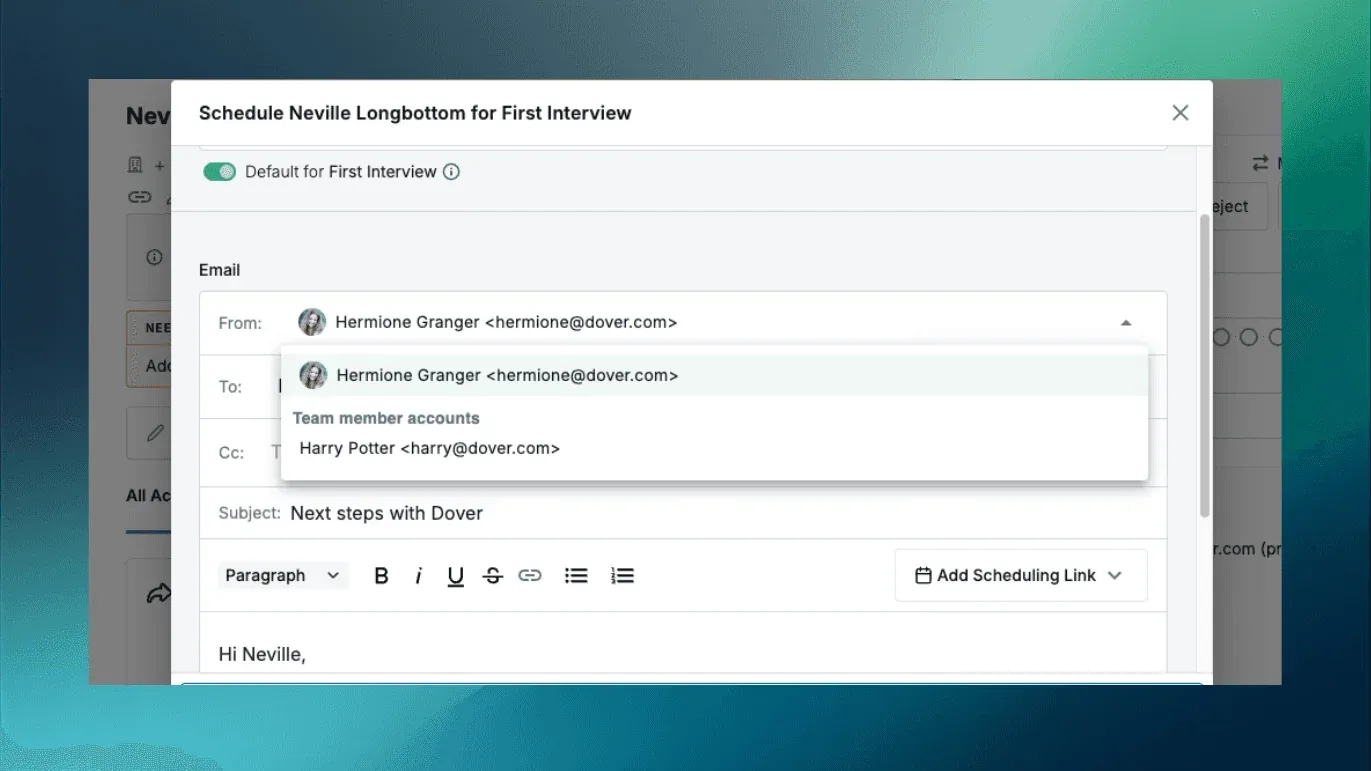
When you write to a candidate, open the From menu and choose your teammate’s address. It works wherever Dover lets you choose the sender:
- Emails to one candidate, such as scheduling and rejection emails
- Emails to a group of candidates
- Outreach campaigns
The teammate needs their own email connected in Account settings → Email & Calendar, because the message is sent from their mailbox.
How email as a teammate permission works
Permission runs in one direction. If you can send as a hiring manager, that doesn’t let them send as you, and it doesn’t cover anyone else on the team.
- Request. After you ask, Dover emails your teammate about the request. Until they answer, the menu shows Email as: Pending.
- Approve or deny. A request to send as you appears on your Requests tab, labeled Email as you. Only you can approve or deny it. An admin can’t approve it for you. Once it’s approved, the requester sees Email as: Granted in the Actions menu on your row and gets an email about it.
- Revoke. The teammate who gave permission can take it back at any time. In Settings → Members, they click Actions next to the requester and choose Revoke email as permission. Dover emails the requester to let them know.
Set up email as a teammate
- Check that your teammate’s email is connected.
- On the Active tab of Settings → Members, find your teammate and click Actions.
- Choose Request to email as with their name, and wait for them to approve it.
Nobody has to turn this on for the company. The hiring manager on your busiest job is a good person to start with. Full steps and screenshots are in the help article.
Email as a teammate availability and pricing
Sending as a teammate needs Premium, at $199/month, or Enterprise. If your company leaves Premium, approved permissions stop working but are kept, so they work again if you upgrade later. See plans and pricing.
Frequently asked questions
Is sending email as a teammate in Dover free?
No, it needs Premium, and Enterprise includes it too.
How do I ask to send email as a teammate in Dover?
In Settings → Members, find them on the Active tab, click Actions and choose Request to email as followed by their name.
Can I stop someone from sending email as me in Dover?
Yes. In Settings → Members, click Actions next to them and choose Revoke email as permission.