Overview
Dover’s knockout questions reject an applicant automatically when they pick an answer you have ruled out. They are part of the Premium plan, for teams with firm requirements such as work authorization, location or availability.
Every busy posting attracts people who can’t take the job, whatever their experience. Someone on your team opens each application, looks for the one answer that rules it out, and sends a rejection, and the candidates who do qualify wait longer.
What knockout questions do
- Choose the answers that rule someone out. Make any multiple choice or multiple select question a knockout question, then select every answer that should reject the applicant. One match is enough.
- Decide when the rejection email goes out. Dover rejects the applicant as soon as they apply, and the email goes out later, so it doesn’t arrive seconds after someone clicks apply.
- Check who was rejected. Rejected applicants aren’t deleted. Filter for Rejected in Applicants to see them and check that the rule works as you meant it to.
You choose the question and the answers, and everyone else still goes to your team for review.
How knockout questions work
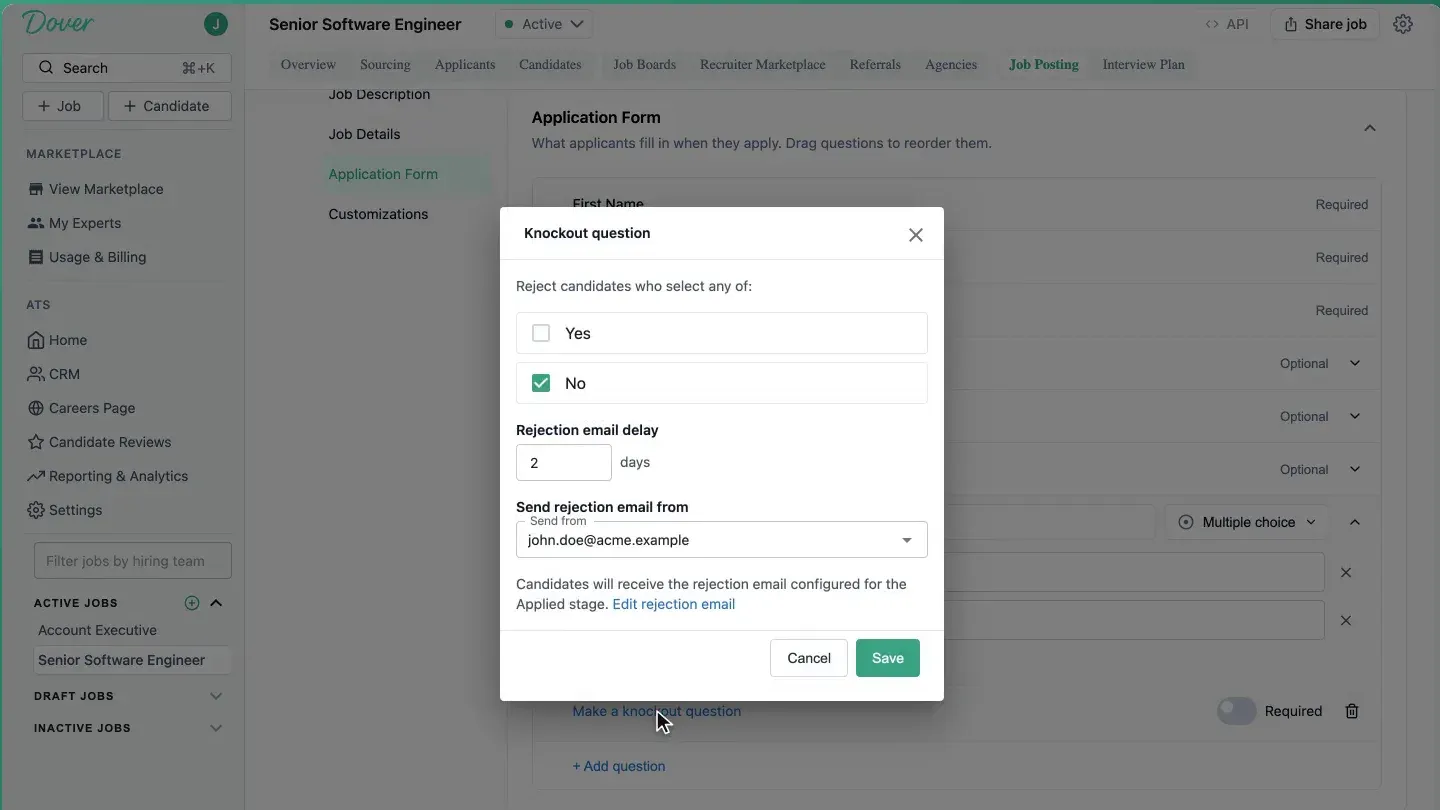
With multiple select, an applicant is rejected if any of the answers they picked is on your list. The question only acts on answers you listed: an applicant who skips an optional question is not rejected. Once saved, the question in your editor shows which answers reject applicants, so teammates editing the form can see the rule.
- Rejection email delay: 1 to 30 days. The default is 2. If an applicant matches more than one knockout question, the longest delay is used.
- Send rejection email from: the address the email comes from. One has to be set before you can save.
The email is the rejection template on your job’s Applied stage, which you can edit on the Interview Plan tab. Applicants who are knocked out aren’t scored with AI, and anyone who has already reached an interview or offer stage on the job isn’t knocked out.
Keep knockouts for requirements that can’t be negotiated. If an answer only makes someone less likely to fit, ask a regular question and decide yourself.
Set up knockout questions
- With the Edit job permission, open a job, click Job Posting, and open a multiple choice question under Application Form.
- Click Make a knockout question and pick the answers.
- Set the delay and sender, click Save, then save the job posting.
Begin with one question, such as work authorization, and look through the rejected applicants after the first week. Full steps and screenshots are in the help article.
Knockout questions availability and pricing
Knockout questions are part of Premium ($199/month) and included in Enterprise. On Free, you can open the settings, but saving opens the upgrade window. See plans and pricing.
Frequently asked questions
Are Dover knockout questions free?
No. Knockout questions are part of Premium.
When does a Dover knockout question reject the applicant?
As soon as they apply. Only the rejection email waits, for 1 to 30 days. The default is 2 days.
Can I use a Dover knockout question on a short answer?
No. A knockout question needs a fixed list of answers, so it works on multiple choice and multiple select questions.