Overview
Approvals let companies on Dover’s ATS Enterprise plan require sign-off before a job is published or an offer reaches a candidate. Enterprise includes everything in Premium and adds approvals.
As more people hire, it gets harder to know that each new role has budget and each offer has the right terms. Many teams check this in chat or email, where a message is easy to miss and a job can go live anyway. Approvals move that check into Dover.
What approvals do
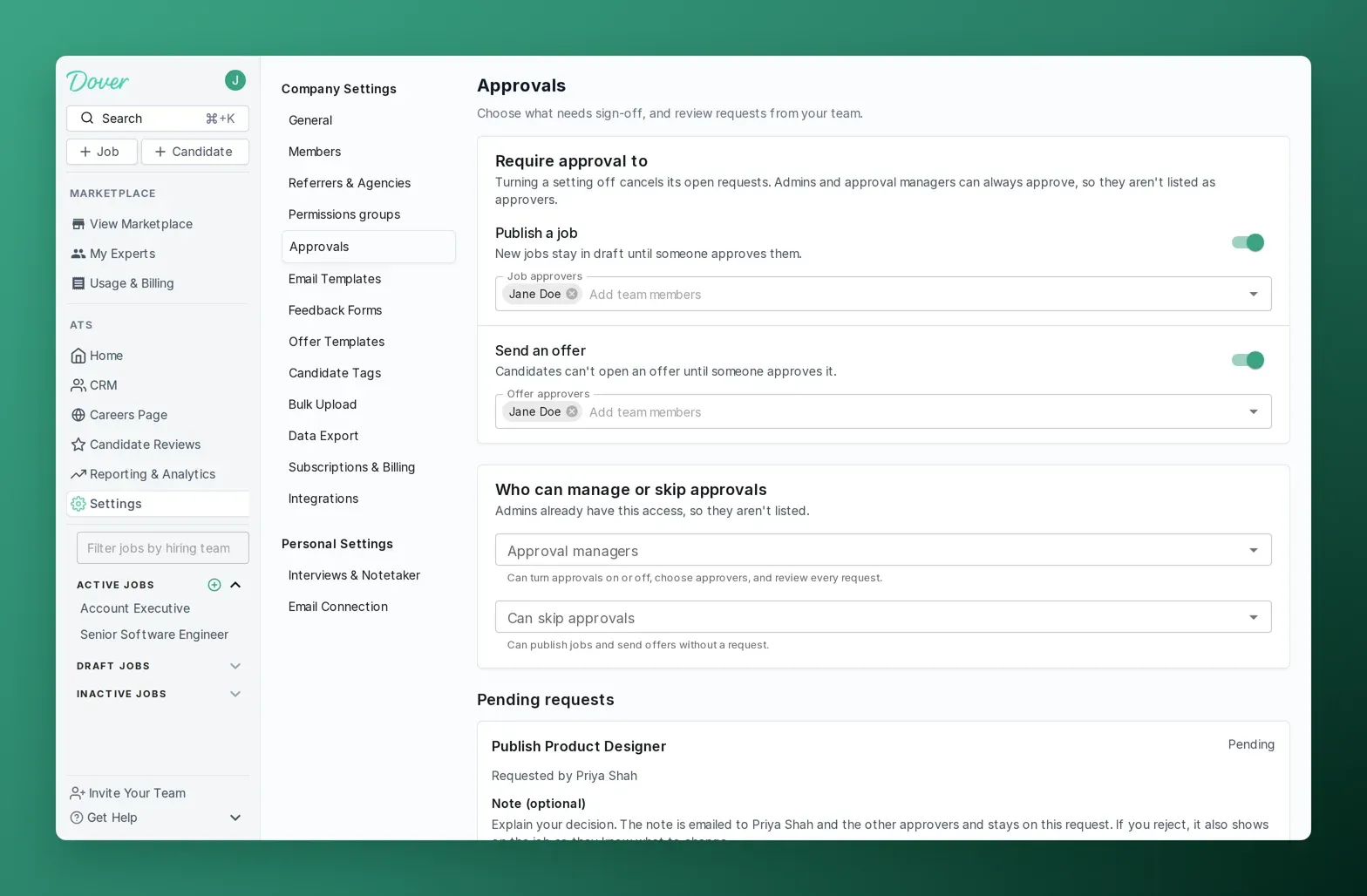
- Approve jobs before they go live. With Publish a job turned on, someone who can’t publish clicks Request approval instead. The job stays a draft marked Pending approval until an approver decides. Approving publishes the job. Rejecting leaves the draft in place, and the note explains what to change.
- Approve offers before candidates see them. With Send an offer turned on, the last step of creating an offer becomes Sign and request approval. The candidate can’t open the offer while it waits. Approvers see a preview of the offer before they choose Approve or Reject, and can add a note.
A person makes every decision. Dover holds the job or offer until an approver says yes.
How approvals work
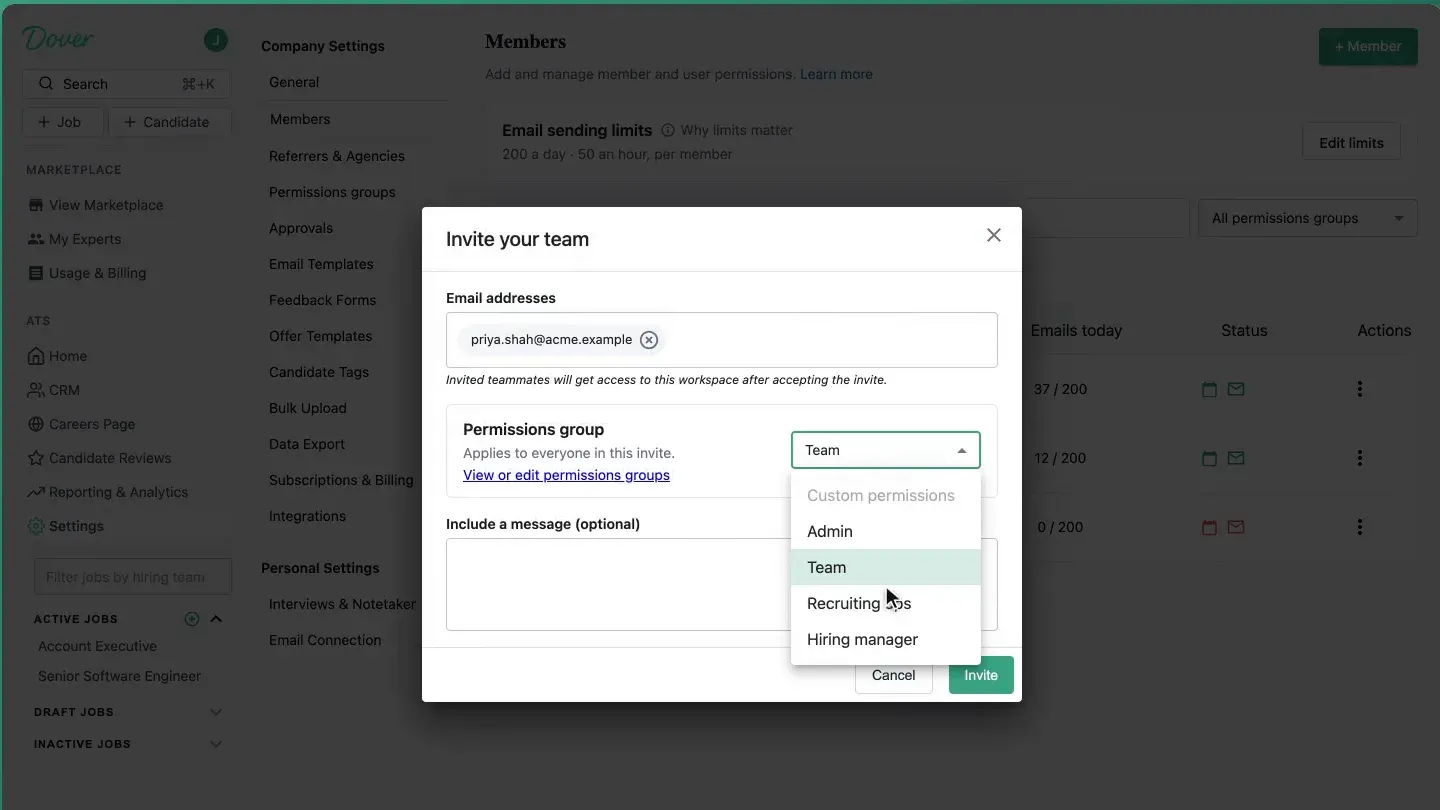
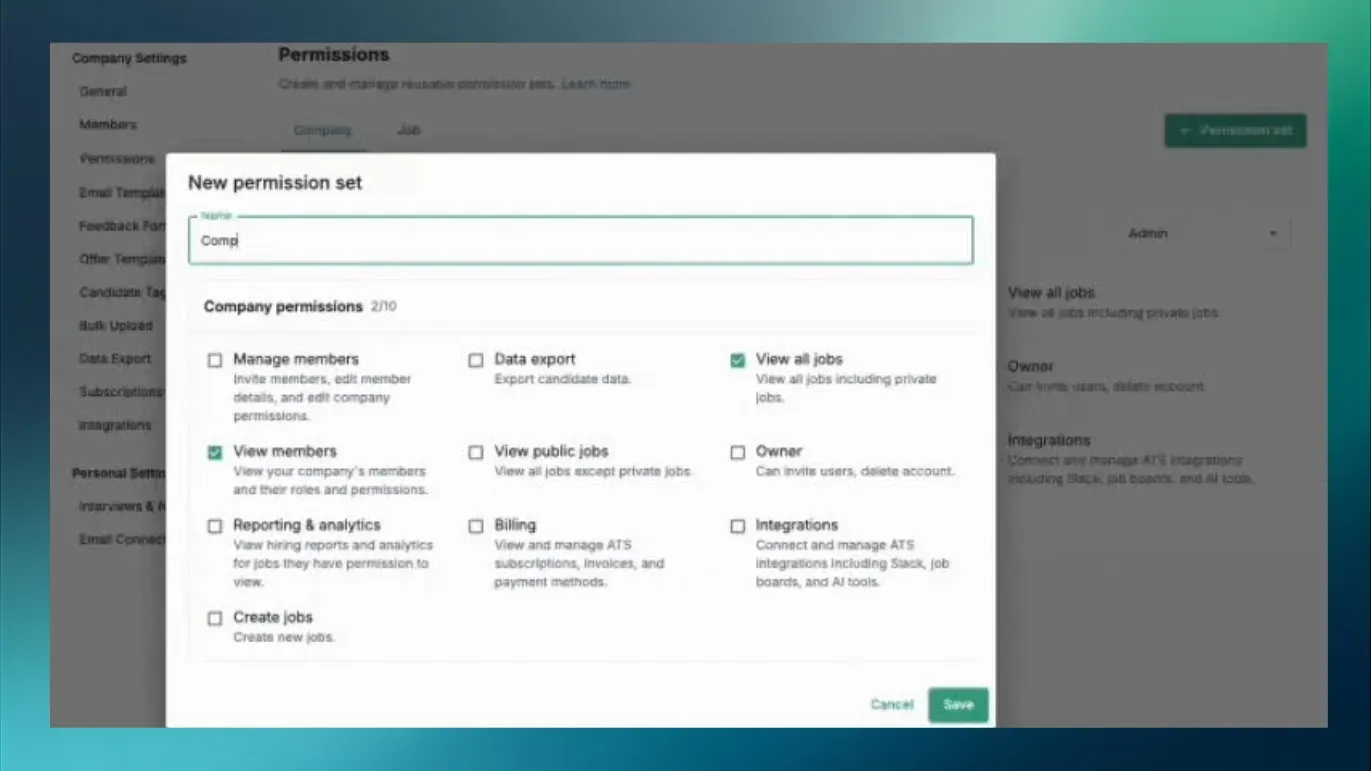
Access is set in one place, separate from permissions groups, so changing someone’s group doesn’t affect it.
- Job approvers and Offer approvers decide requests of their kind, and don’t need approval for that kind themselves.
- Approval managers change the settings and review every request. Only admins can choose them.
- People in Can skip approvals publish jobs and send offers without asking, but can’t decide other people’s requests.
Admins can do all of this. Dover emails approvers when a request comes in and sends decisions by email, so the requester and the approvers know where things stand.
If you turn off an approval, its open requests are canceled. Offers that were waiting stay hidden from the candidate, so recreate them to send them.
Set up approvals
- An admin books a call under Settings → Subscriptions & Billing with Upgrade to Enterprise.
- Once you’re on the plan, open Settings → Approvals and turn on Publish a job, Send an offer, or both.
- Choose your job approvers and offer approvers.
Start with job approvals and one or two job approvers, then add offer approvals when your team is used to the flow. Full steps and screenshots are in the help article.
Approvals availability and pricing
Approvals are only on Enterprise. Enterprise pricing is flexible and arranged on a call with Dover, and you don’t need Premium first. Enterprise also includes other features, such as custom fraud risk scoring. See plans and pricing.
Frequently asked questions
Are Dover approvals included in Premium?
No. Job and offer approvals are only on Enterprise, which includes everything in Premium. Admins on Free or Premium see a preview of the Approvals page.
How do I turn on approvals in Dover?
An admin or approval manager goes to Settings → Approvals and turns on Publish a job, Send an offer, or both, then chooses approvers.
Does reactivating a job need approval in Dover?
No. Only a job's first publish needs approval.