Overview
Dover’s voluntary EEO survey adds optional self-identification questions to the end of a job’s application form. It’s part of Premium, for teams that want to understand who applies to their jobs, and shows combined results only. Asking with an ordinary application question puts sensitive answers next to the resume, where the people making decisions can see them, and a separate survey tool is one more link for candidates to ignore.
What the EEO survey does
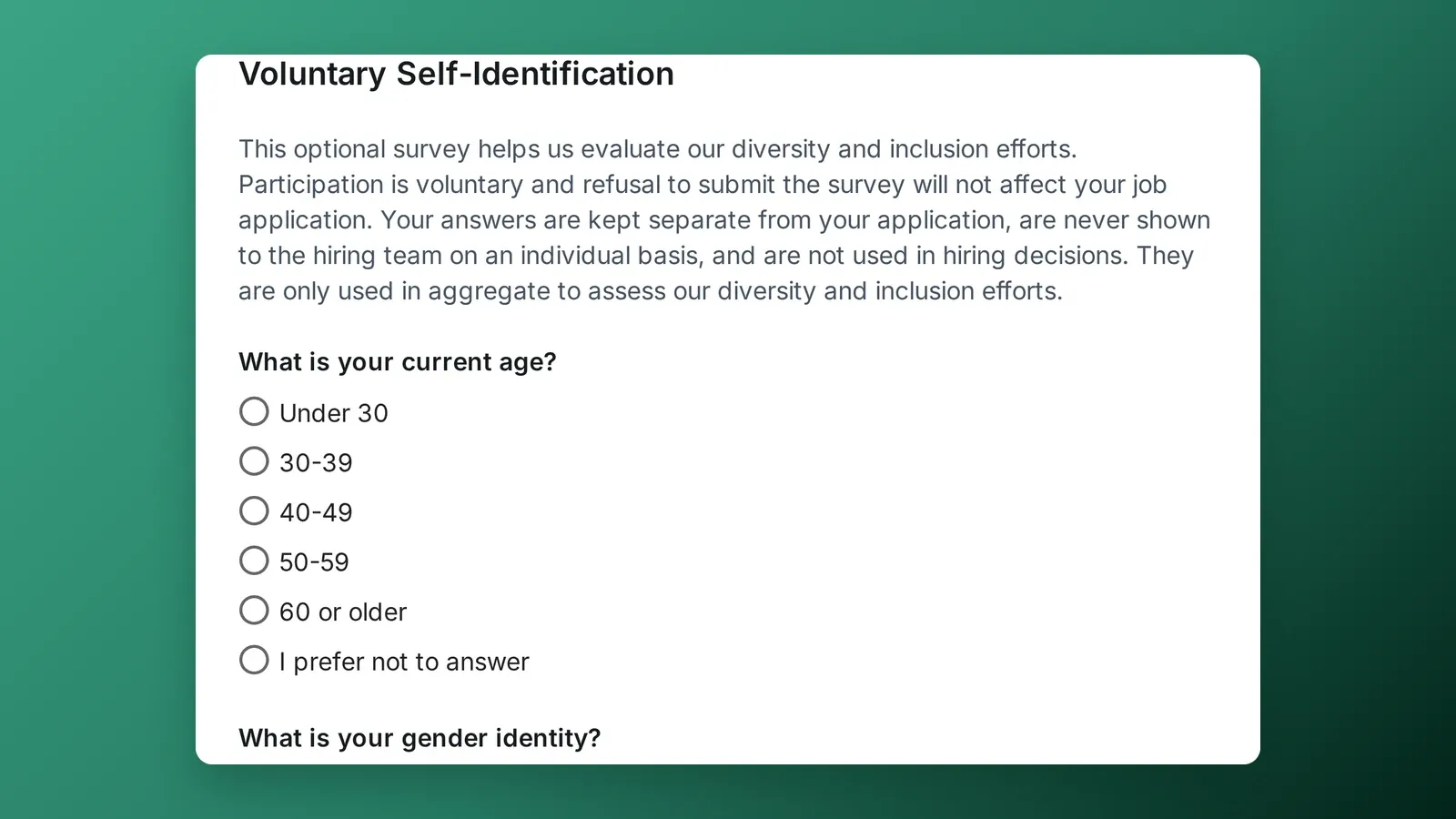
- Asks without adding pressure. Applicants see Voluntary Self-Identification at the end of the form. It covers age, gender identity, ethnicity, protected veteran status, disability and communities. Every question can be skipped, and each has I prefer not to answer. The survey tells applicants that taking part is voluntary, won’t affect their application, and that answers are not used in hiring decisions.
- Keeps individual answers private. The survey sits inside the application but is stored apart from it. Answers don’t appear when you review an application, in AI scoring, in search or in exports, and are never used to score or reject anyone.
- Shows combined results. Results are in Reporting & Analytics → Diversity (EEO), with a chart for each question. Choose All jobs or one job.
How the EEO survey works
The questions are the same for every job, so results can be added together. Your team sees counts for each option, not people. To protect small groups, results appear only after at least 5 people have answered for a job, and they update in groups of 5. An option that only a few people chose has its count hidden.
The Diversity (EEO) tab ignores the page’s other filters, because comparing narrow views could reveal one person’s answers. You see results only for jobs you have access to.
If you built your careers page with the Dover API, the job page includes the survey questions, and you can send the answers with the application. Treat every question as optional there too.
Set up the EEO survey
- With the Edit job permission, open a job and click Job Posting.
- Open Customizations. To see the survey first, click Preview questions under the switch.
- Turn on Collect EEO self-identification (voluntary) and click Save.
To read results, a teammate needs the Reporting & analytics permission. Begin with your job with the most applicants, since it will reach 5 responses soonest. Full steps and screenshots are in the help article.
EEO survey availability and pricing
The EEO survey is part of Premium ($199/month) and included in Enterprise. It is off by default and set for each job. On Free, the survey isn’t shown to applicants. If you leave Premium, the survey stops appearing until you upgrade again. See plans and pricing.
Frequently asked questions
Is the Dover EEO survey free?
No. Collecting the survey and seeing its results are part of Premium.
Can my hiring team see a candidate's Dover EEO survey answers?
No. Answers are kept apart from the application, and you only see combined counts in Reporting & Analytics.
How do I turn on the Dover EEO survey?
Open a job, click Job Posting, open Customizations, turn on Collect EEO self-identification (voluntary), and click Save.