Overview
Dover MCP connects your Dover workspace to the AI tools you already use, including Claude, ChatGPT, Cursor and Codex. It’s for anyone on the hiring team, and it’s included in both the Free and Premium plans. If you use an AI assistant to think through a hire, you usually have to bring it the facts: copy a resume, paste the job description, summarize the last interview, then go back to Dover to record what you decided.
What Dover MCP does
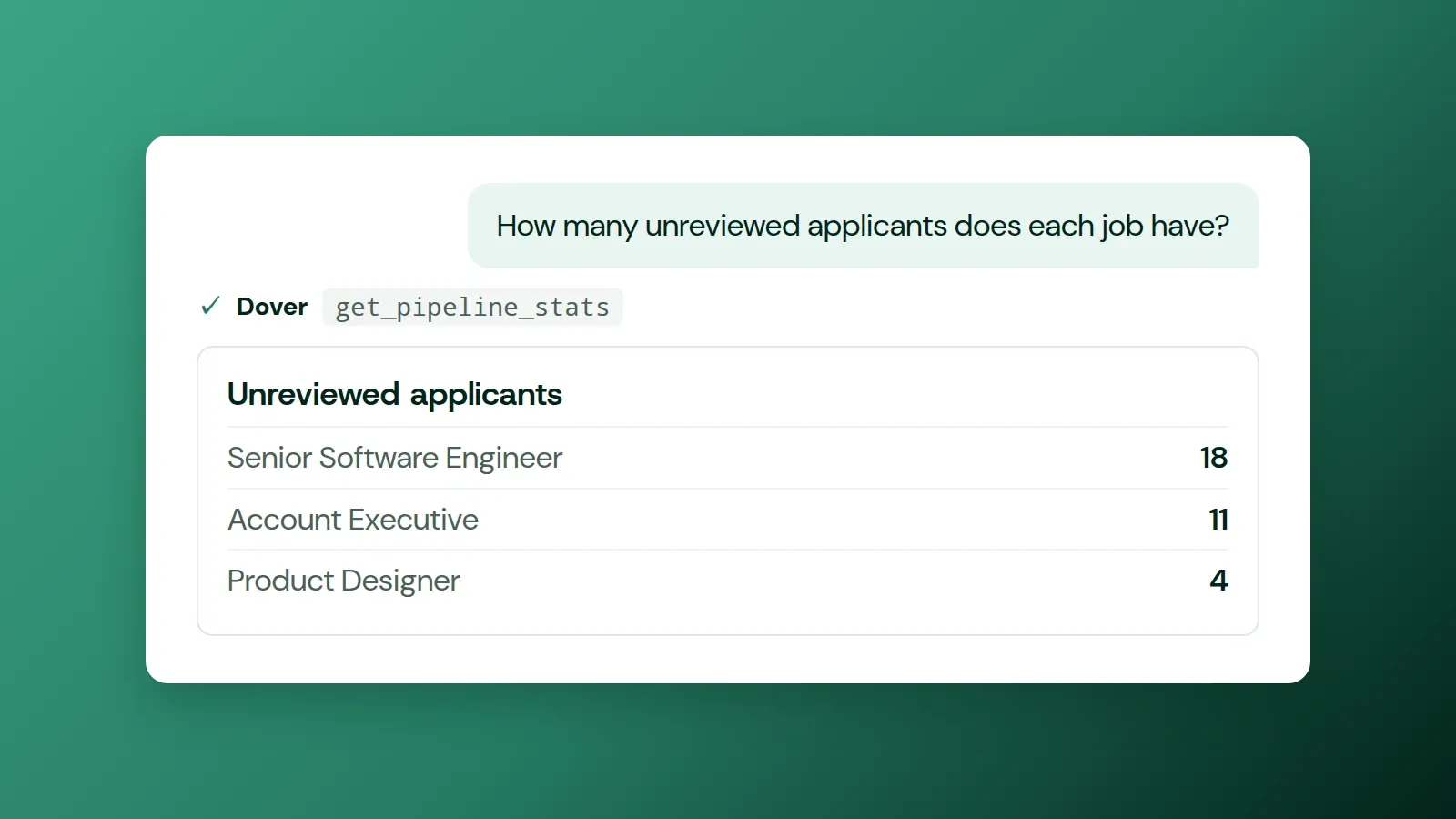
- Finds and compares candidates. Ask about people by name, or start from a job. For example, “Show me the strongest applicants for Senior Software Engineer and explain what in their resumes fits.” Your assistant can list the jobs you can see, look at a job’s top applications with match scores when they are available, find a candidate and read their resume and contact details, and read the answers a candidate gave on the application form.
- Prepares you for an interview. Ask for a briefing before a call. Your assistant can bring together the candidate’s resume, earlier interview feedback and your team’s internal notes, then suggest what is still worth asking.
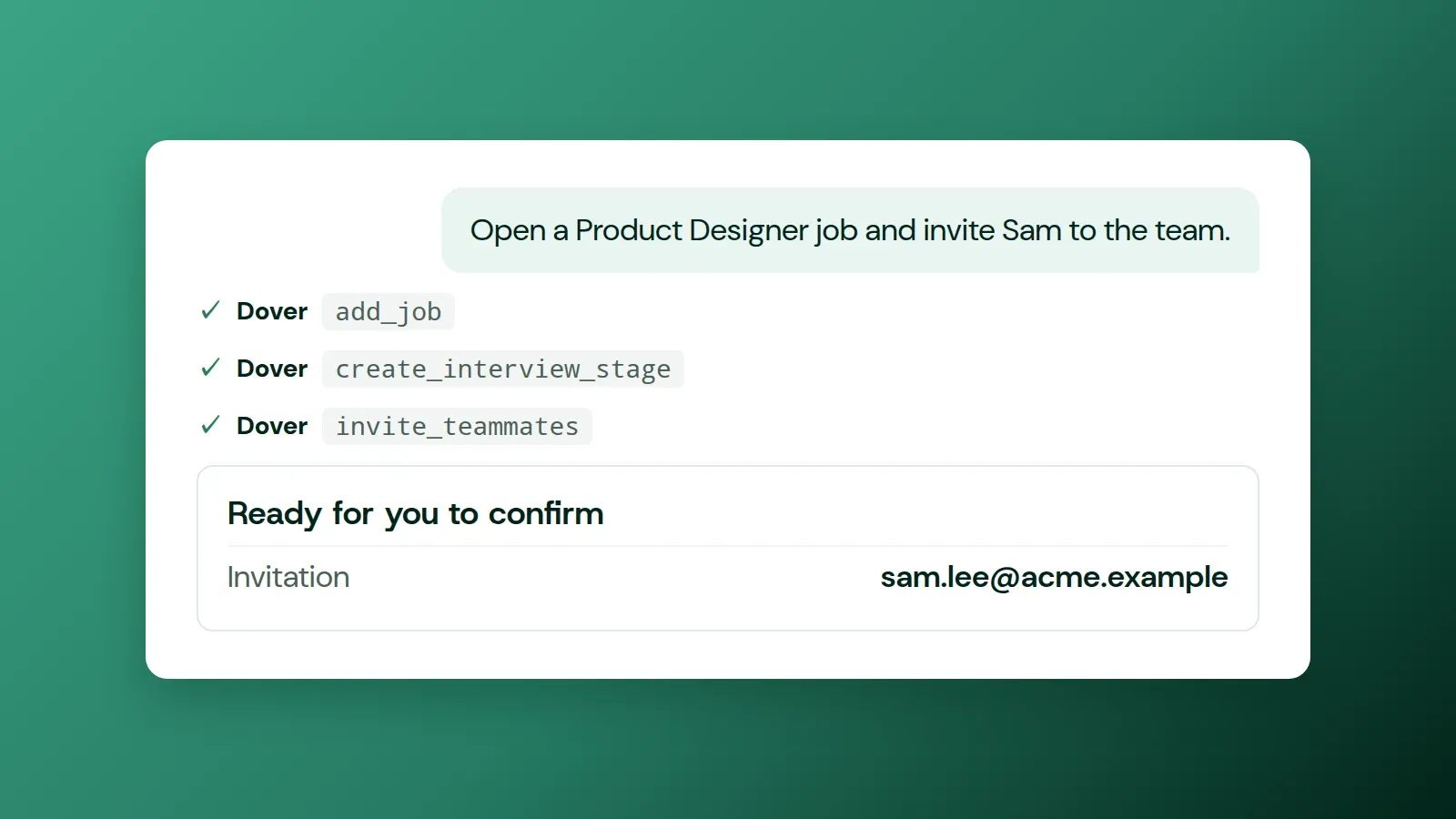
- Keeps the pipeline up to date. After you decide, tell your assistant to add a note or move the candidate to another stage. The change appears in Dover for the rest of your team.
You decide what to ask for, and who moves forward.
How Dover MCP works
Each person signs in with their own Dover account. An assistant can only retrieve the jobs, candidates and applications that your Dover permissions allow. If you belong to more than one workspace, you choose which one to connect when you approve access.
Under Connected apps, you can see your own connections and disconnect any of them. A disconnected tool has to sign in again before it can use Dover. To book interviews, connect your calendar to the same AI tool.
Set up Dover MCP
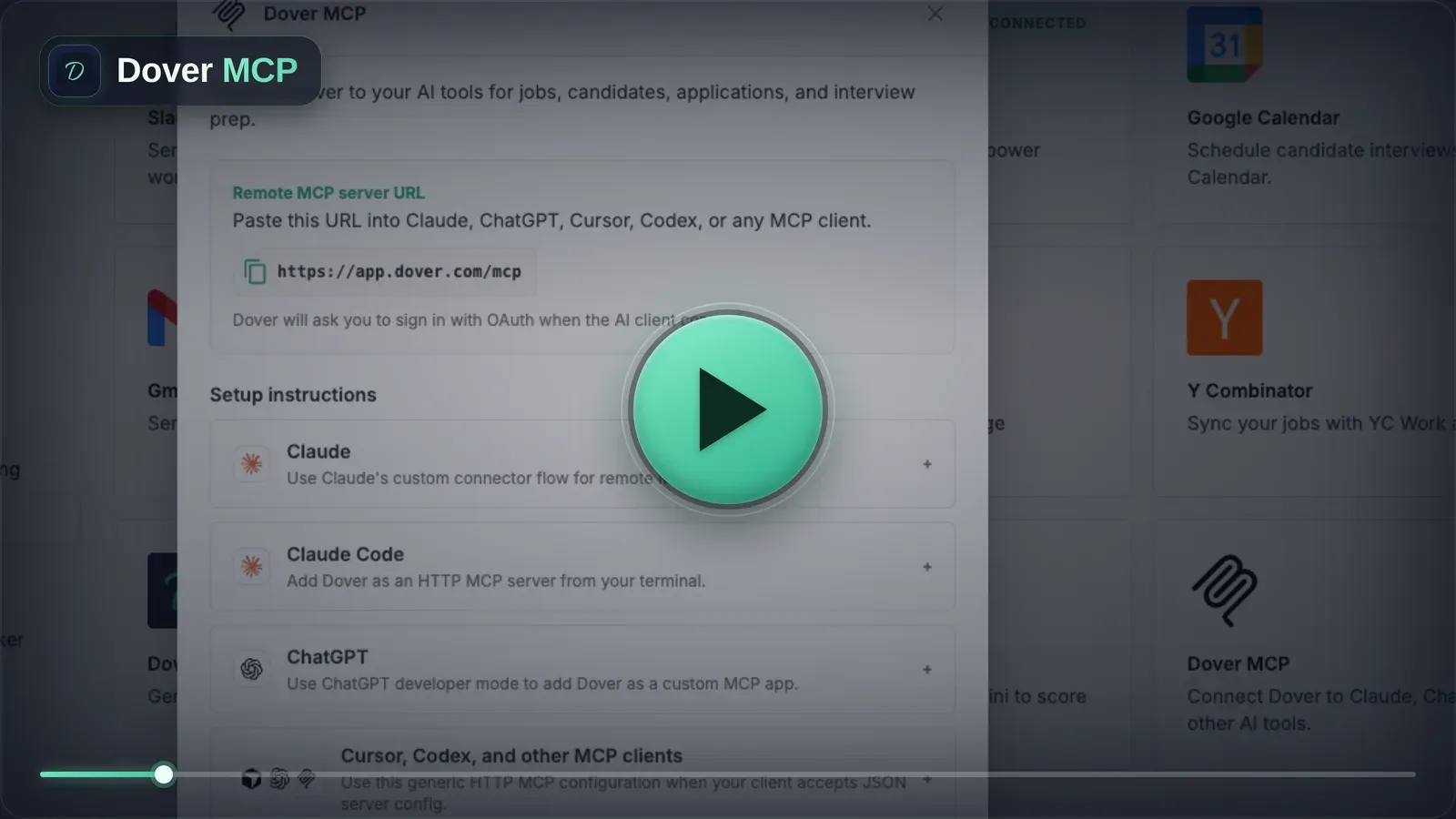
- Go to Settings → Integrations → Dover MCP. Each team member connects their own tool.
- Choose your tool under Setup instructions, or copy the Remote MCP server URL into any client that supports remote MCP servers.
- Sign in to Dover when your tool asks you to, and approve access.
Start with a question that changes nothing, such as “Which of our jobs are active?” For more ideas, see the Dover MCP example prompts. Full steps and screenshots are in the help article.
Dover MCP availability and pricing
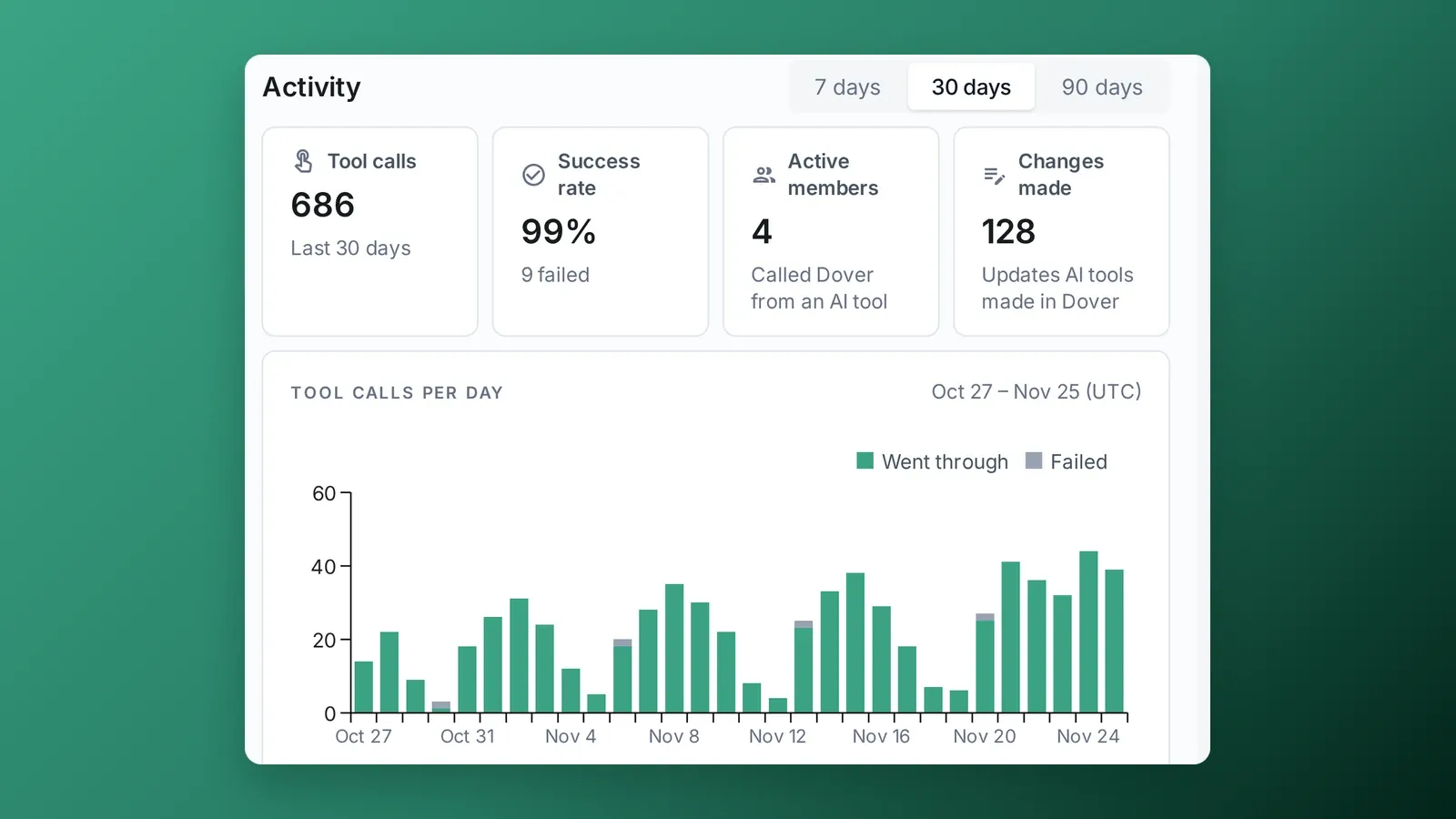
Dover MCP is included in Free and Premium. Free has a monthly allowance of tool calls for the workspace, and Premium is unlimited. A tool call is one action your assistant takes in Dover, so one prompt can use several. You also need an account with the AI tool you connect. See plans and pricing.
Frequently asked questions
Is Dover MCP free?
Yes, with a monthly allowance of tool calls on the Free plan. One prompt can use several tool calls. Premium has unlimited MCP usage.
How do I connect Dover MCP to my AI tool?
Go to Settings → Integrations → Dover MCP and choose your tool under Setup instructions. Sign in to Dover when your tool asks you to.
Which AI tools work with Dover MCP?
Claude, Claude Code, ChatGPT, Cursor, Codex and other tools that support remote MCP servers.
Can I disconnect an AI tool from Dover MCP?
Yes. Open Settings → Integrations → Dover MCP, find the tool under Connected apps and click Disconnect. It loses access right away.