Overview
Dover accepts Word (.docx) resumes as well as PDFs, and reads them the same way. Any team can allow them on its application forms, on Free and Premium. Not everyone keeps a PDF of their resume, and a form that only takes PDFs makes candidates stop and convert a file, so some never come back.
What Word resume support does
The setting is off at first and is set for each job. When it is on, applicants can upload a .docx or a PDF of up to 5 MB. When it is off, the form takes only PDFs. You can add a single candidate yourself from a PDF or Word resume either way. Bulk upload takes PDFs only.
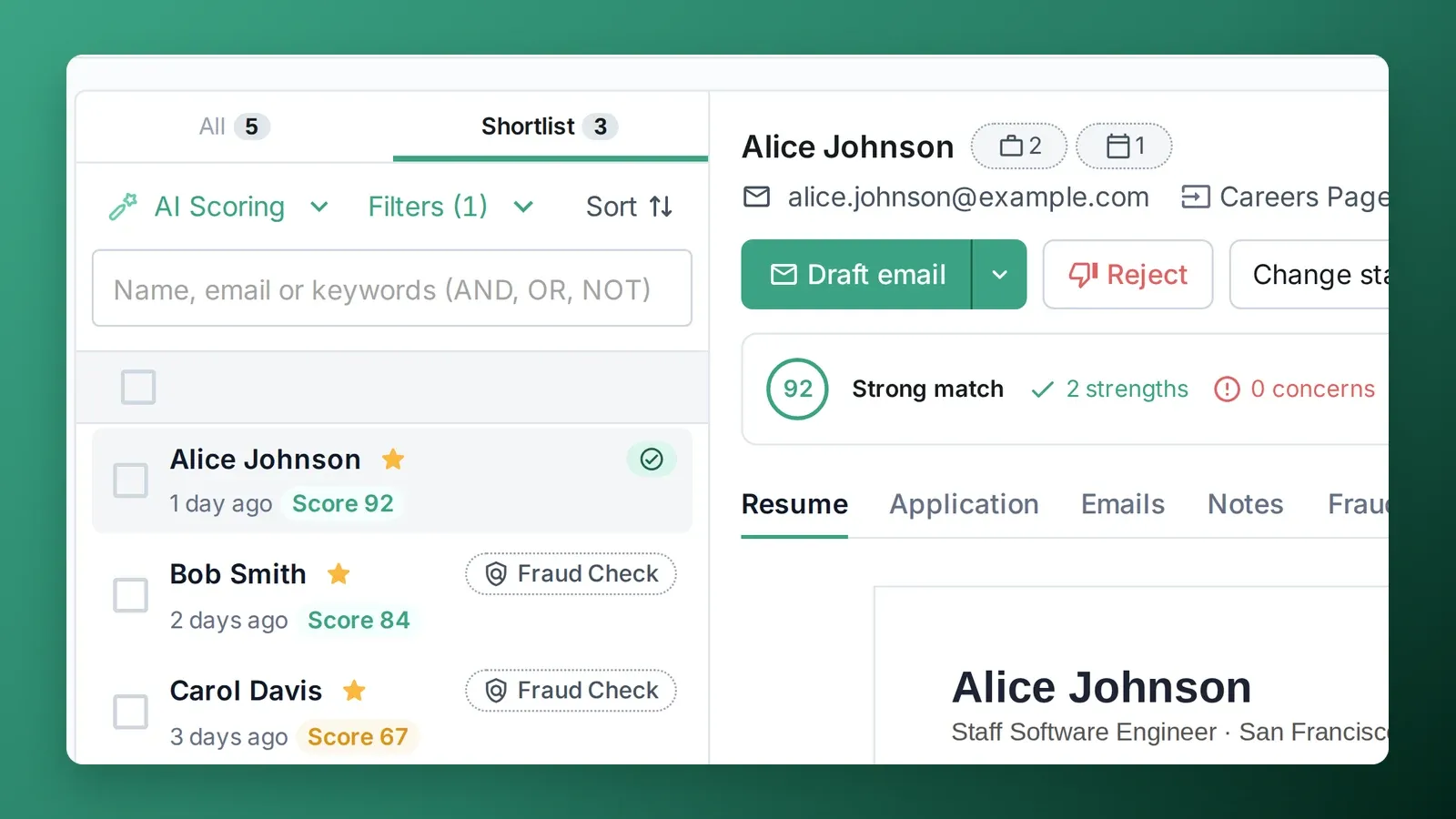
Dover extracts the text of a Word resume, so keyword search in Applicants finds words in it, AI scoring reads it, and adding a candidate from one fills in their details. To read the original, download it from the Resume tab. People still decide who moves forward.
Set up Word resumes
- With the Edit job permission, open a job and click Job Posting.
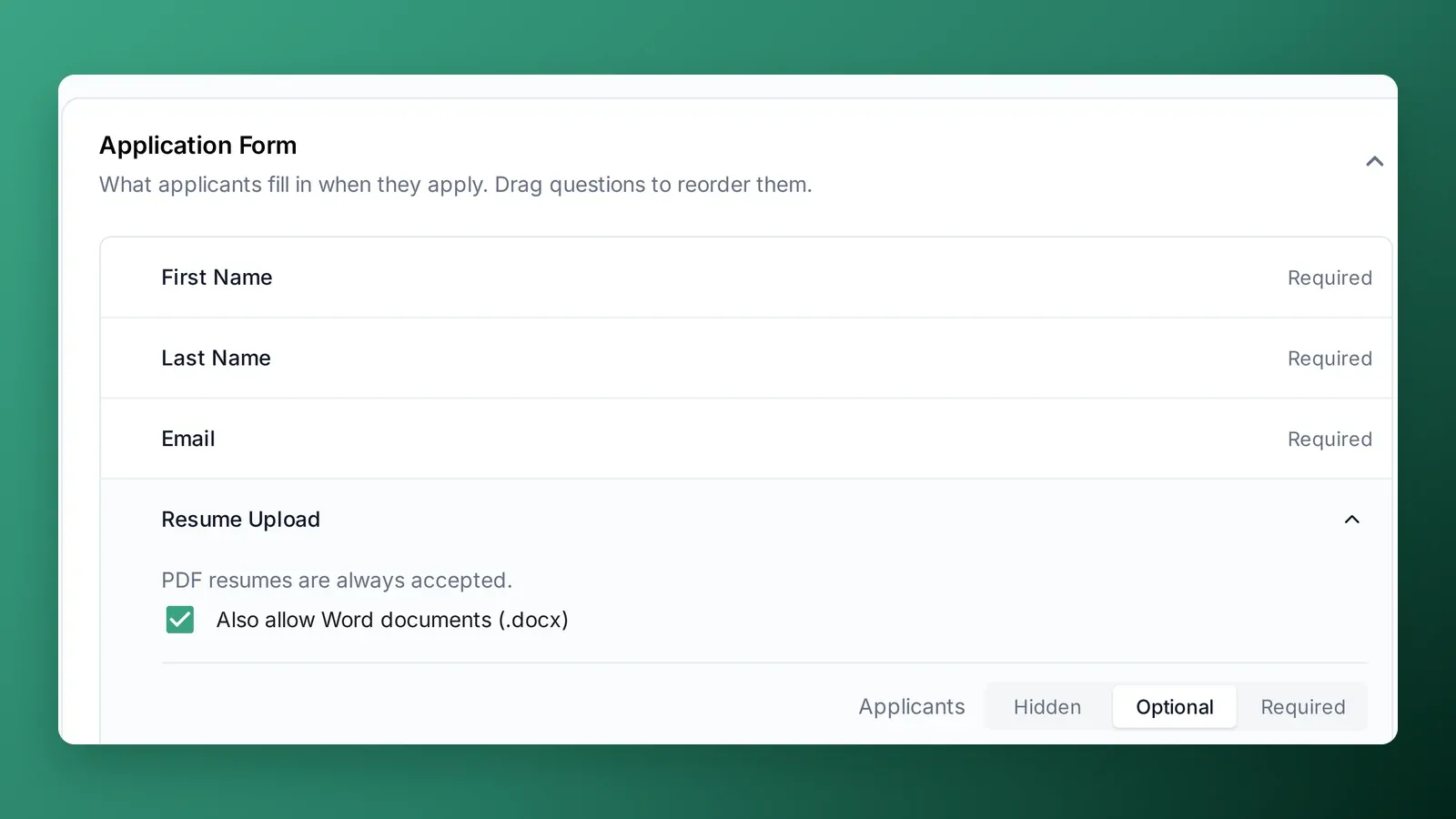
- Open the Resume Upload question under Application Form.
- Select Also allow Word documents (.docx) and click Save.
Begin with your job with the most applicants. Full steps and screenshots are in the help article.
Word resumes availability and pricing
Accepting Word resumes is included on every plan. AI scoring requires Premium. See plans and pricing.
Frequently asked questions
Are Word resumes free in Dover?
Yes. You can accept Word resumes on Free and Premium. Scoring them with AI requires Premium.
How do I let applicants upload a Word resume in Dover?
Open the job, click Job Posting, open the Resume Upload question under Application Form, select Also allow Word documents (.docx), and click Save.
Can Dover accept only Word resumes?
No. PDF resumes are always accepted. The setting adds Word files to them.