Overview
Dover’s document upload questions let you ask applicants for a file on your application form, such as a cover letter or transcript. They’re part of Premium, for teams that need more than a resume to review someone. Asking by email means chasing each applicant, saving attachments by hand, and reviewing people before everything has arrived, while asking for pasted text loses the layout of the original.
What document upload questions do
- Ask for the files you need. Add a question with the Document upload type and give it a title applicants will recognize, such as “Cover letter”. You can add several, each with its own title, and make each one required or optional.
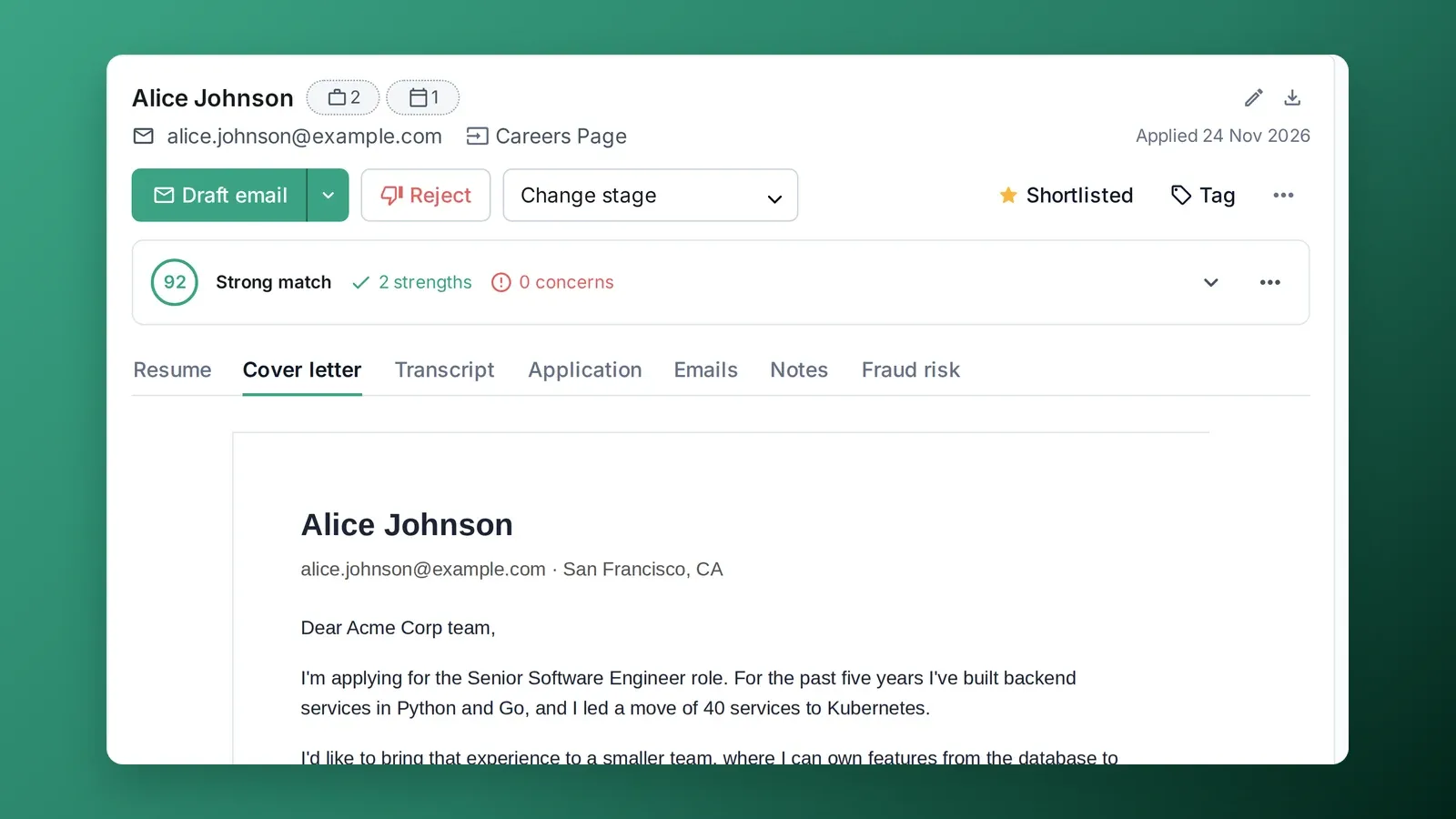
- Review each document in its own tab. In Applicants, every uploaded document opens in its own tab, named after your question and placed next to Resume. You can read a cover letter and go back to the resume without leaving the applicant.
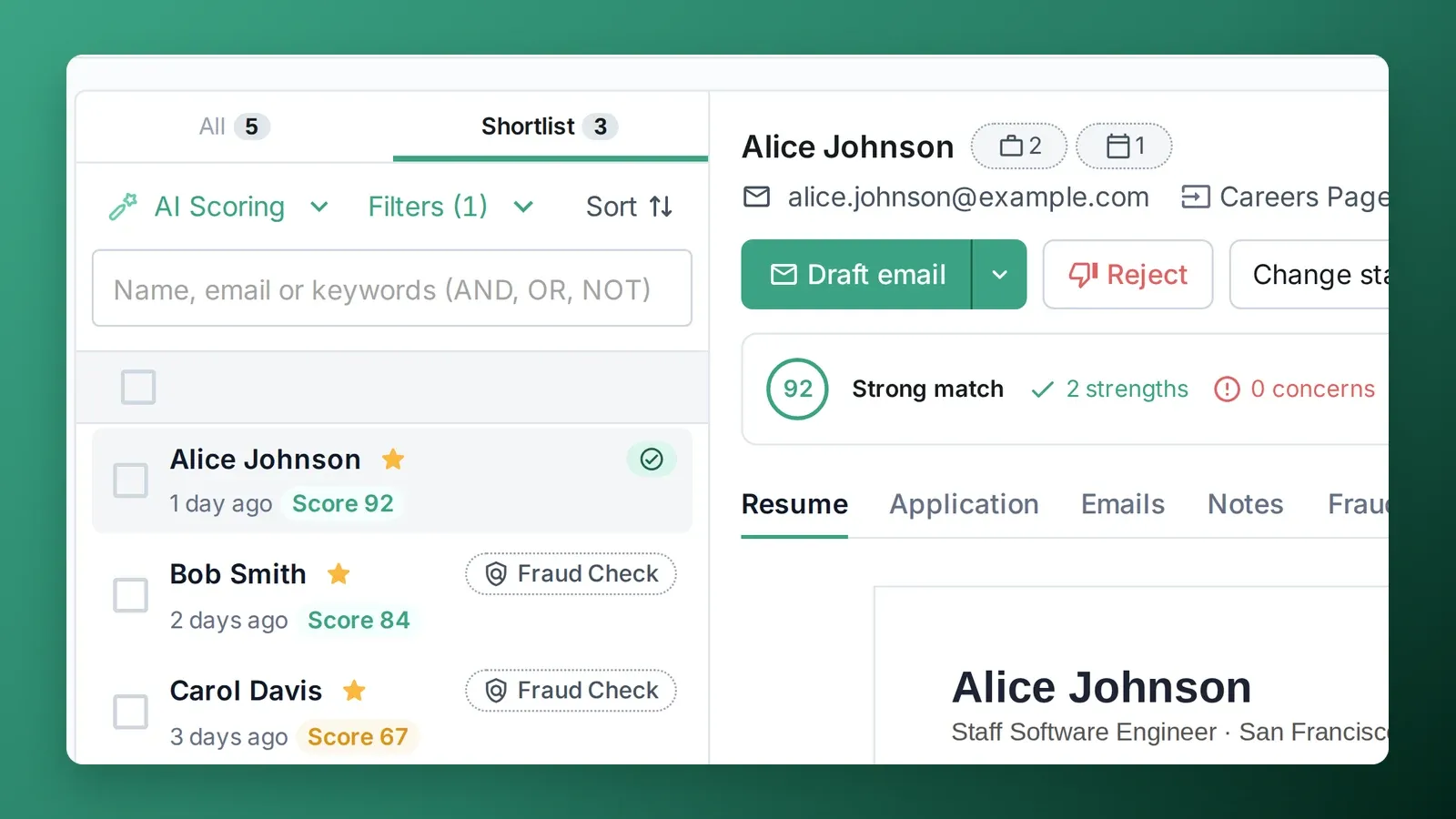
- Find applicants by what they wrote. Keyword search in Applicants covers the text of uploaded documents as well as resumes. You can also filter on the question itself, to see who has or hasn’t uploaded a file.
The file comes in with the application and stays with the candidate. Your team still reads it and decides what to do next.
How document upload questions work
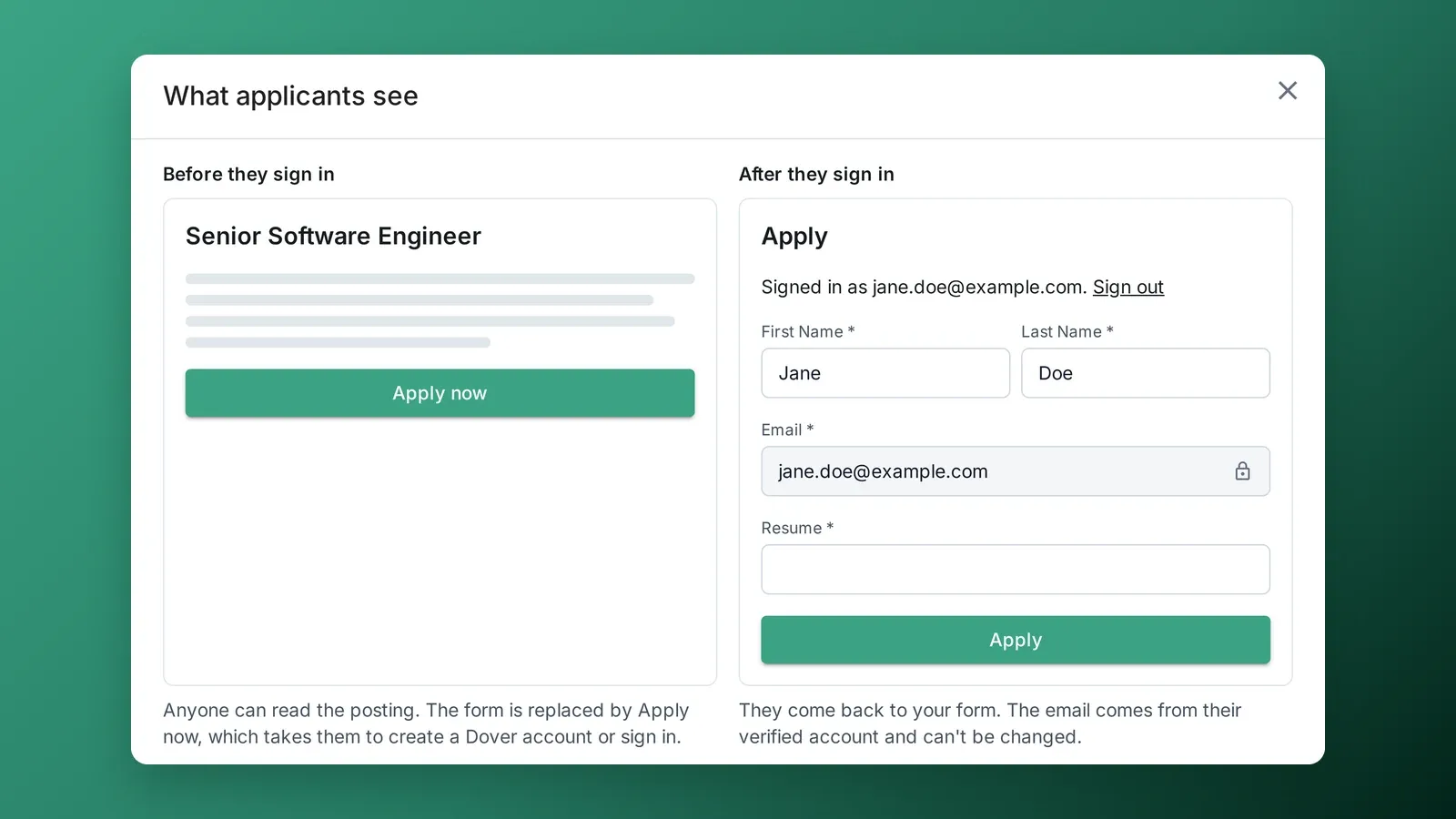
Applicants see your title with an upload box. The resume upload sits right after the email field, and your questions follow in the order you set.
Files can be a PDF up to 5 MB. To accept Word files as well, select Also allow Word documents (.docx) under the Resume question. That setting covers resumes and documents for the job. Word files have to be downloaded to read them.
Dover also adds each document to the candidate’s files, under Resume > Files on their profile, so teammates can find it later in the process.
Set up document upload questions
- With the Edit job permission, open a job, click Job Posting, and go to Application Form.
- Click + Add question and change the type from Short answer to Document upload.
- Enter a title, choose whether it’s Required, and click Save.
Start with one optional document on a single job, so you can see what applicants send before you make it required. Full steps and screenshots are in the help article.
Document upload questions availability and pricing
Document upload questions are part of Premium ($199/month) and included in Enterprise. They work on the application form Dover hosts, and aren’t shown or required for applications that arrive through the Dover API. If your plan changes to Free, applicants no longer see the questions. You can move or remove them, and they return if you upgrade again. See plans and pricing.
Frequently asked questions
Are Dover document upload questions free?
No. They are part of Premium. On Free, you can see the question type but can't save it.
Which file types can applicants upload to a Dover document question?
A PDF up to 5 MB. Word files (.docx) are accepted too if you select Also allow Word documents (.docx) under the Resume question.
Can I search documents uploaded to Dover?
Yes. Keyword search in Applicants covers the text of uploaded documents as well as resumes.