Overview
Dover’s CRM campaigns are email sequences you can run on anyone in your Dover CRM, whichever job they applied to. Adding people to them is included in ATS Premium, for teams who want to keep strong past candidates warm. The person who came second for a role last year may be the right hire for the next one, but outreach campaigns used to belong to a job, so there was no natural place to write to people between openings.
What CRM campaigns do
- Write a sequence once. Give the campaign a name, choose who sends it, and write up to five emails including follow-ups. Campaign names are unique, so they stay easy to tell apart.
- Send from a real inbox. Emails go out from the sender’s connected inbox. You can send as yourself, or as a teammate who has approved it under Settings → Members.
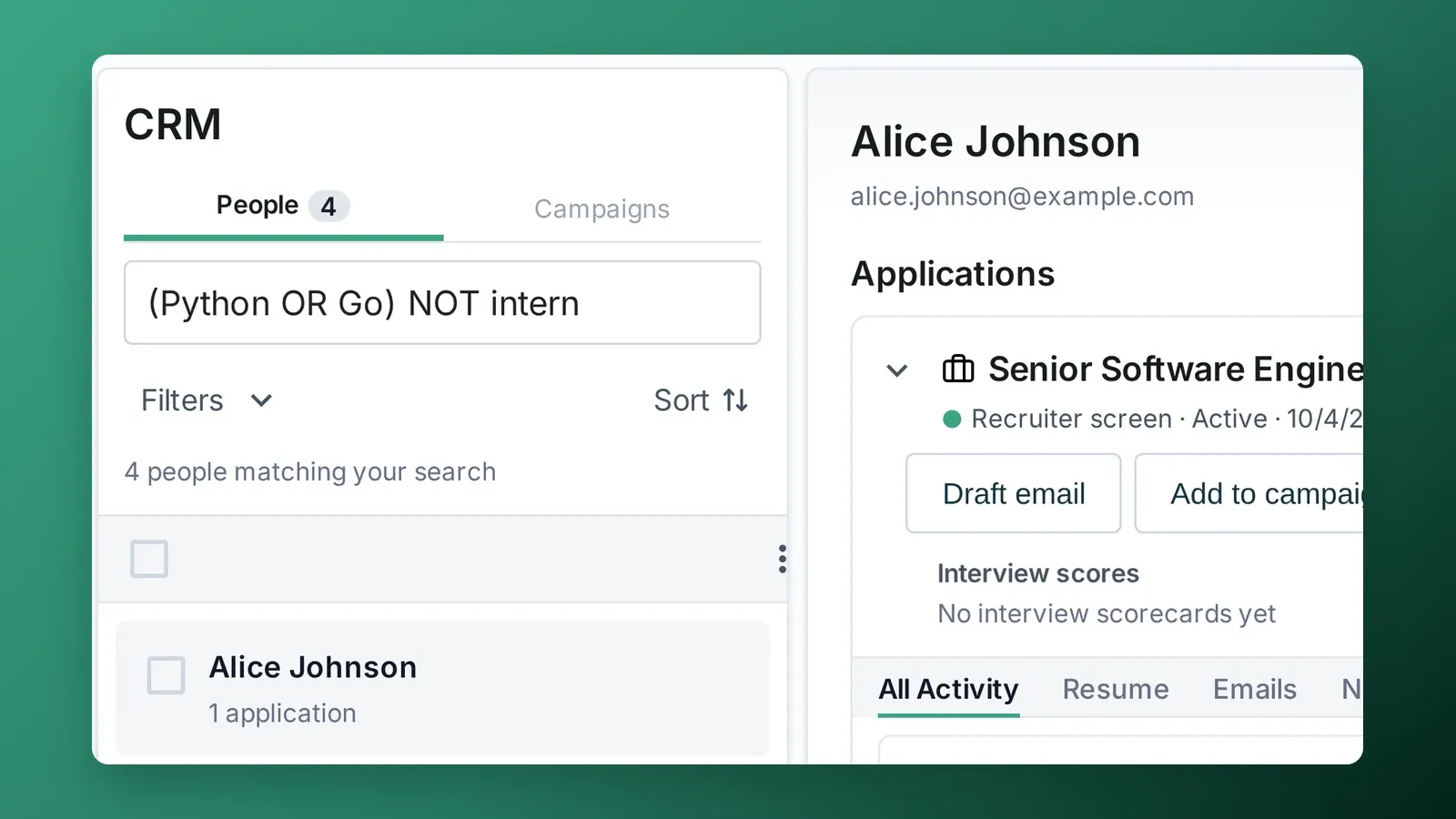
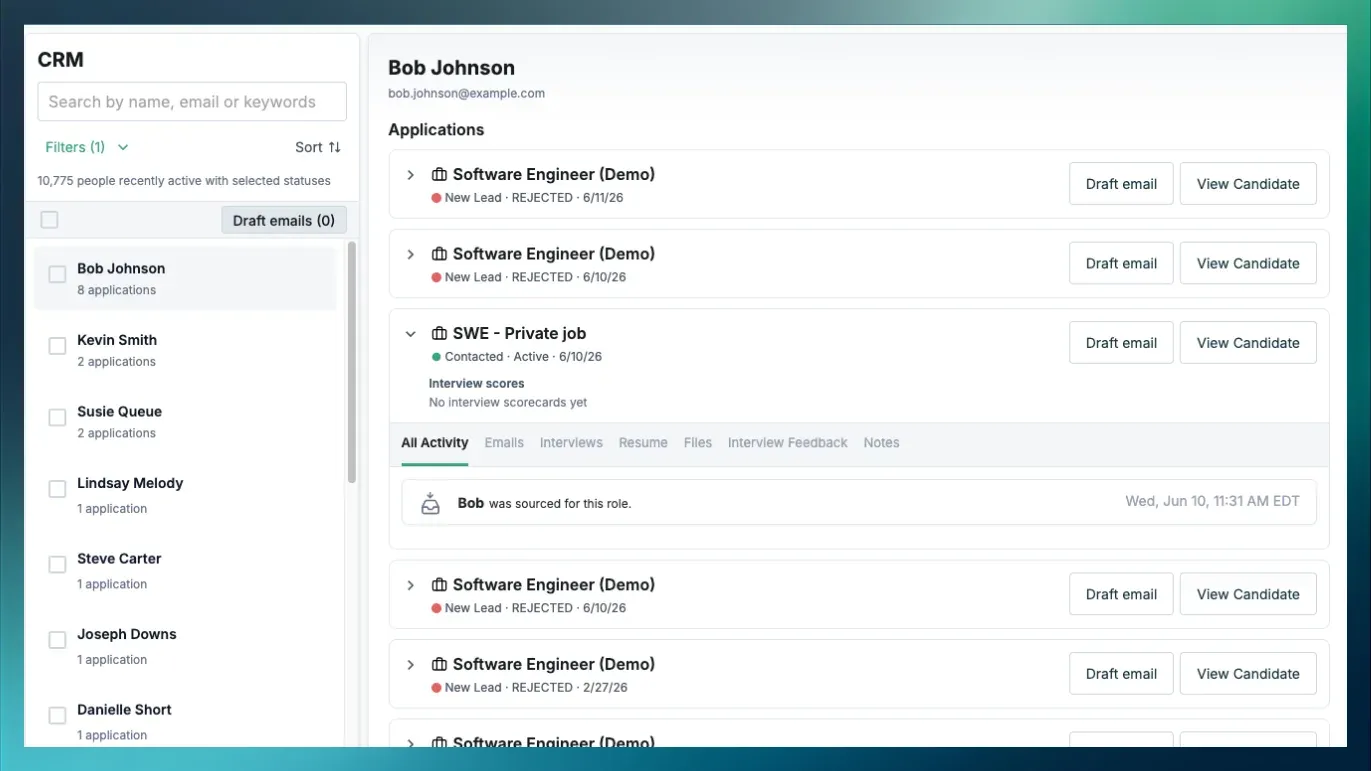
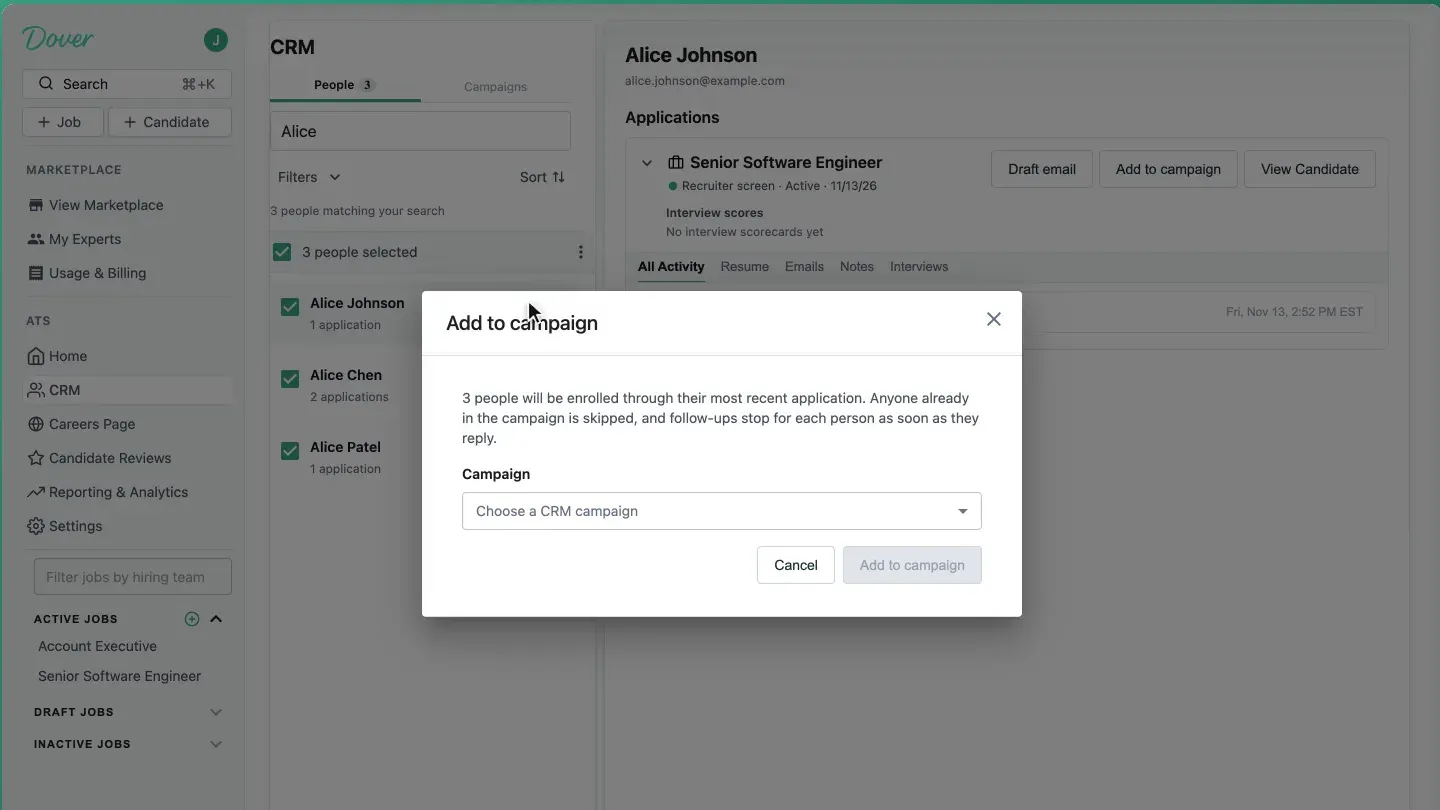
- Add people from the CRM. Add one person from their application with Add to campaign, or select many on the People tab. Search and filters narrow the list first, for example to people rejected from one job or everyone with a certain tag.
- Stop follow-ups when someone replies. A reply cancels the follow-ups still waiting in that campaign.
A CRM campaign belongs to your company. Your team writes the messages, chooses who gets them and decides when the campaign is on.
How CRM campaigns work
Only an active campaign sends email. If you add people while it’s inactive, they’re enrolled and nothing is sent until you turn it on.
When you add people in bulk, each person is enrolled through their most recent application that you can see, and one request adds up to 500 people. You also need the Manage candidates permission on the job behind each application.
When someone replies, other campaigns they’re in carry on. If Dover can’t tell which campaign a reply belongs to, it stops all of them, so a person who answered isn’t emailed again. Moving a candidate past the outreach stages also stops their campaigns. To see who’s in a campaign, use the Campaign filter on the People tab.
Set up CRM campaigns
- Click CRM in the left sidebar, open the Campaigns tab and click + Campaign.
- Name the campaign, choose the sender, write your emails and turn it on.
- On the People tab, select people, open Bulk actions and click Add to campaign.
Start with a short note to past finalists, and add a handful of people before a larger group. Full steps and screenshots are in the help article.
CRM campaigns availability and pricing
Adding people to CRM campaigns is included in ATS Premium, $199/month, and in Enterprise. Sending as a teammate is also Premium. Free teams can create a campaign and write its messages, but adding people to it needs an upgrade. Admins can create a campaign, and so can members with the Draft job permission. See plans and pricing.
Frequently asked questions
Are Dover CRM campaigns free?
Adding people to a CRM campaign needs ATS Premium. Outreach campaigns on a job's Sourcing tab are available on Free.
Can someone be in more than one Dover CRM campaign?
Yes. A person can be in several campaigns at once, and replies are tracked for each one. Anyone already in a campaign is skipped when you add them to it again.
Who can create a Dover CRM campaign?
Admins, and members whose permissions group includes Draft job.