Overview
Dover’s webhooks send a message to a web address you choose each time a candidate applies. They’re included in Premium, for teams that want other tools to know about a new applicant right away. New applications often matter outside your hiring tool: a post in a chat channel, a row in an internal dashboard, or a custom screening step. Without a signal from Dover, somebody has to copy the details over, or a script has to keep checking for new applicants.
What Dover webhooks do
- Send each application as it arrives. Add an endpoint for each system that needs the news, and choose the Candidate applied event. What your system does with it is up to you. Candidates still appear in Dover as usual for your team to review.
- Include what your system needs. Each request contains the job’s ID and title; the candidate’s name, email and LinkedIn ID; when they applied and where they came from, such as your careers page; and their answers to your application questions.
- Prove a request came from Dover. Dover signs every request with that endpoint’s secret. Your developer uses the secret to confirm that a request is genuine and wasn’t changed on the way.
How Dover webhooks work
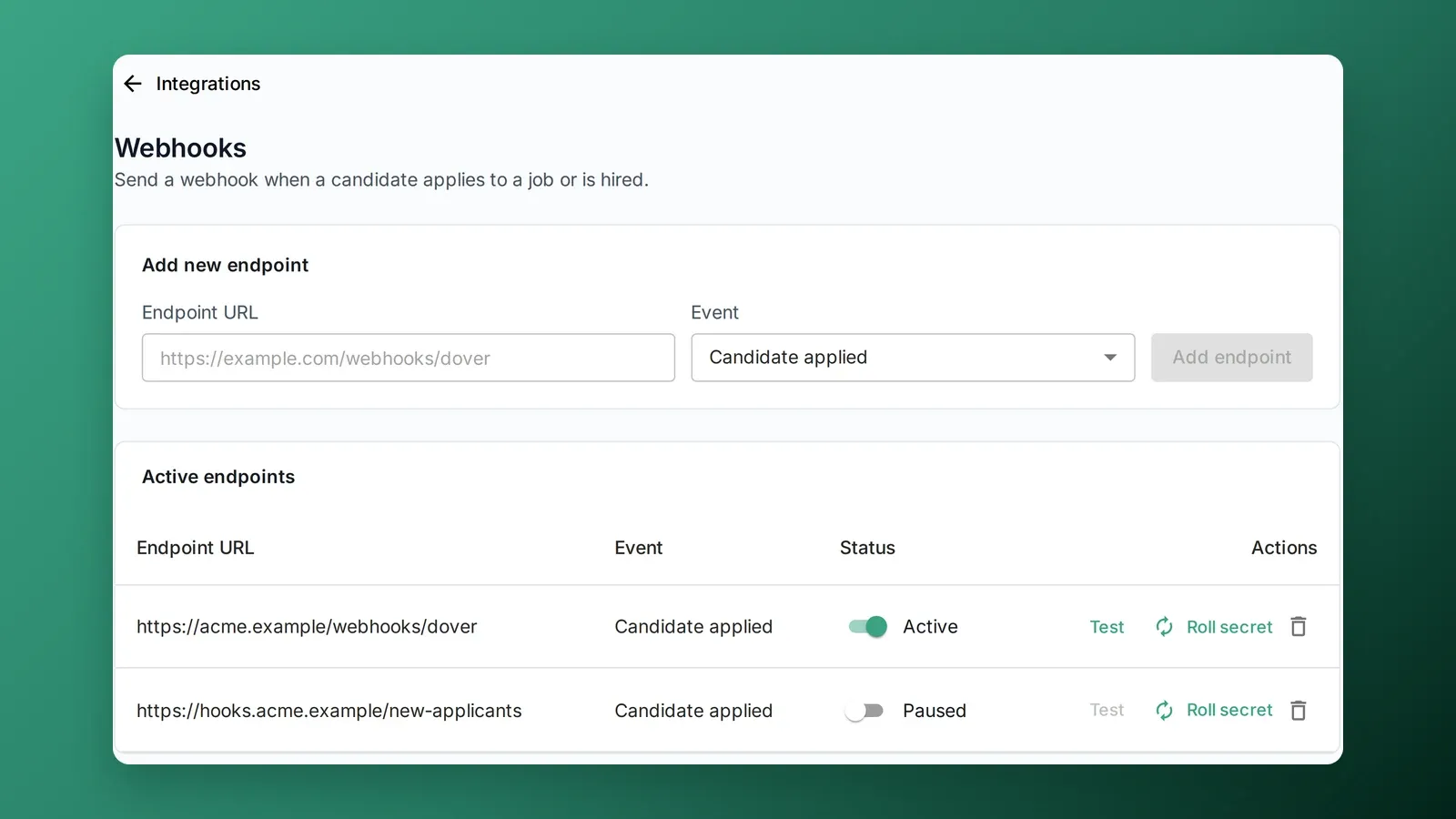
The Endpoint URL must be public and use HTTPS. The signing secret is shown once, when you add the endpoint, so store it somewhere safe. If you lose it, click Roll secret to get a new one.
Click Test to send a sample event before you rely on an endpoint. Switch an endpoint to Paused when you’re doing maintenance, and Dover cancels anything still waiting to be sent to it.
If your system doesn’t answer within 10 seconds, or returns a server error, Dover tries again, about 5 minutes apart, up to 10 attempts in total. Each event keeps the same ID across retries, so your system can ignore repeats.
Set up webhooks
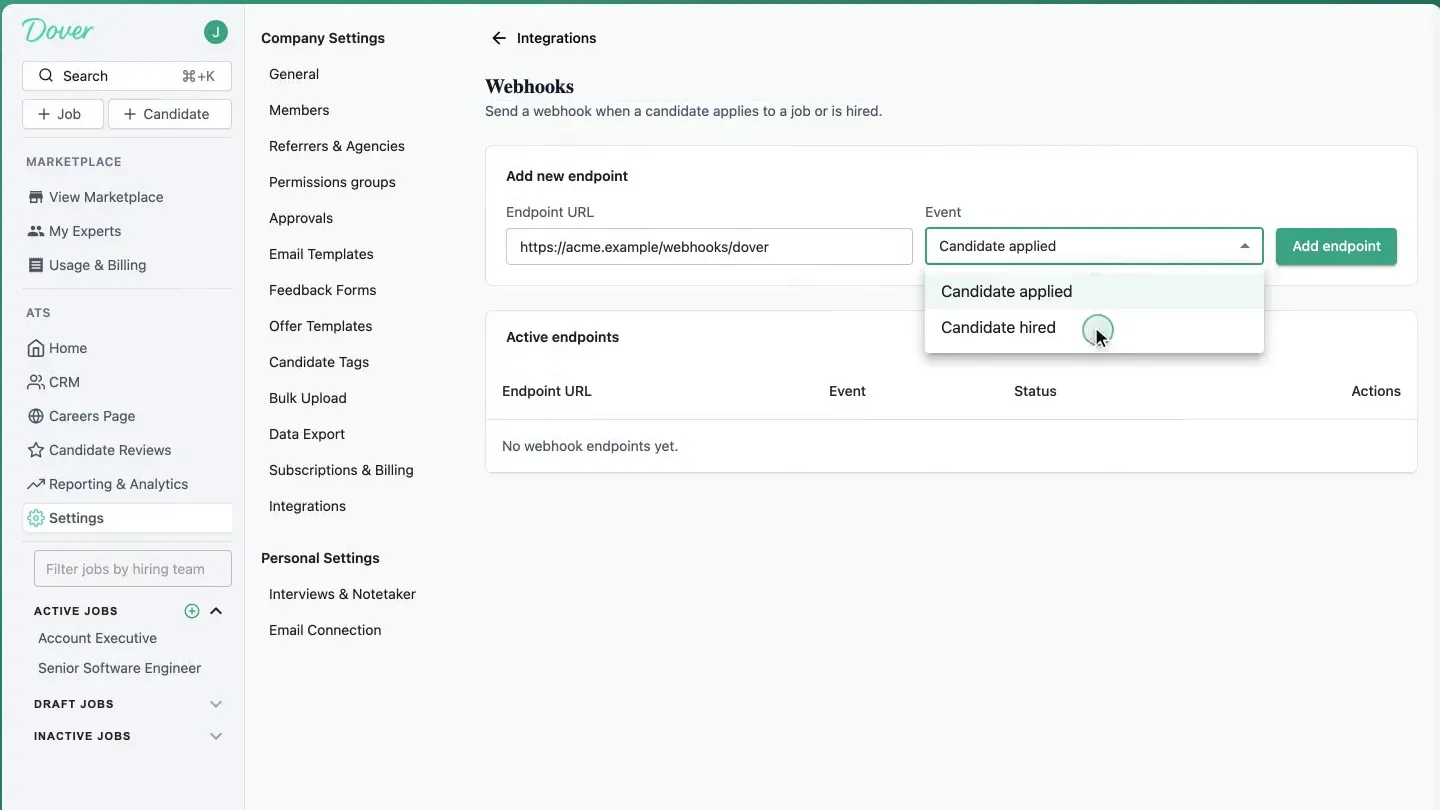
- Open Settings → Integrations → Webhooks.
- Enter the Endpoint URL, choose Candidate applied and click Add endpoint.
- Copy the signing secret and give it to your developer.
- Click Test and confirm that your system receives the sample.
Send a test before you connect the endpoint to anything else. Full steps and screenshots are in the help article.
Webhooks availability and pricing
Webhooks are included in Premium at $199/month, and aren’t included in Free. On Free, adding an endpoint opens the upgrade window. Adding and managing endpoints needs the Integrations company permission. See plans and pricing.
Frequently asked questions
Are Dover webhooks free?
No. Webhooks are included in Premium, which is $199/month. On Free, adding an endpoint opens the upgrade window.
What happens if my system is down when Dover sends a webhook?
Dover retries after timeouts, network errors and server errors, about 5 minutes apart, up to 10 attempts in total.
Does the Dover webhook include the resume?
No. It includes the candidate's name, email and LinkedIn ID, the job, the source, and the answers to application questions.