Overview
Dover’s candidate tags are labels you create, color and add to the people in your pipeline. They’re for any hiring team: the Free plan includes up to three tags, and Premium has no limit. An interview stage tells you how far someone has got, and nothing else. It doesn’t say that a person would relocate, that they suit a different role, or that you promised to follow up in spring, so those details end up in notes nobody can filter.
What candidate tags do
- Label people by what matters to you. You decide what each tag means, such as “Future role” or “Needs follow-up”. A tag never changes someone’s stage or status.
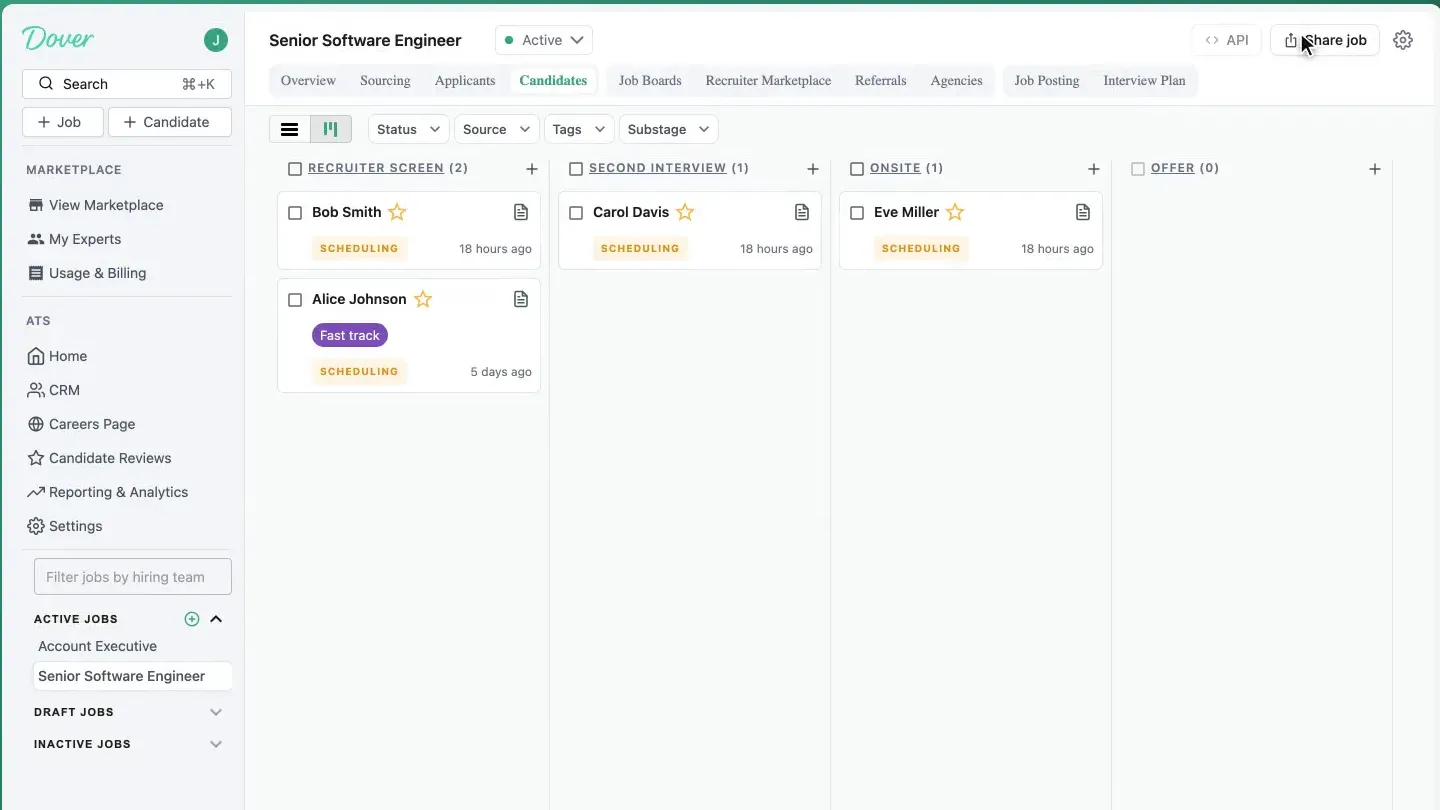
- Share labels with your team. Tags are shared, so a teammate who opens the profile sees the same ones. They also show on the candidate’s card on the Candidates board.
- Filter by tag. Use the Tags filter to narrow the Candidates tab, the Applicants list or the CRM. In the CRM, the filter covers people from all your jobs, so one tag can gather everyone you’d like to contact about a future role.
How candidate tags work
You create a tag in Settings → Candidate Tags with + Tag. Give it a name and choose a color with Select color, from the presets or a hex code of your own. Preview shows how it will look. You can also create one while you’re looking at a candidate: type the name in Add tags… and choose the Create option.
Add tags in the Tags section of a candidate’s profile. Changing a tag’s name or color updates it for everyone who has it. Deleting a tag takes it off every candidate, and can’t be undone.
Set up candidate tags
- Go to Settings → Candidate Tags and click + Tag.
- Enter a name, choose a color with Select color and check the Preview.
- Open a candidate and add the tag in the Tags section of their profile.
- Use the Tags filter on the Candidates tab to find everyone with it.
Start with one tag for a question your team keeps asking, and agree on what it means before you add more, so everyone uses it the same way. Full steps and screenshots are in the help article.
Candidate tags availability and pricing
The Free plan includes up to three tags, plus the built-in Shortlist tag, which doesn’t count toward the limit. ATS Premium has unlimited tags, and can add or remove tags for many candidates at once. When a Free company reaches its limit, Dover shows an upgrade message; deleting a tag you no longer use also frees a place. See plans and pricing.
Frequently asked questions
Are Dover candidate tags free?
Yes, up to three tags. ATS Premium has no limit. The built-in Shortlist tag doesn't count.
How do I create a candidate tag in Dover?
Go to Settings → Candidate Tags and click + Tag, or type a new name in the Tags section of a candidate's profile.
Can I rename or delete a Dover candidate tag?
Yes. A new name shows everywhere the tag is used. Deleting a tag removes it from every candidate and can't be undone.