Overview
Dover now records three parts of every candidate’s source: a channel, a source and a sourcer, and you can edit all of them. It’s included in the Free and Premium plans, for recruiting teams that want to know where hires come from. Reports are only as good as what was recorded when someone was added. A referral entered as a direct application, or a sourced lead with nobody’s name on it, hides the channel that works and the person who did the work.
What candidate sources record
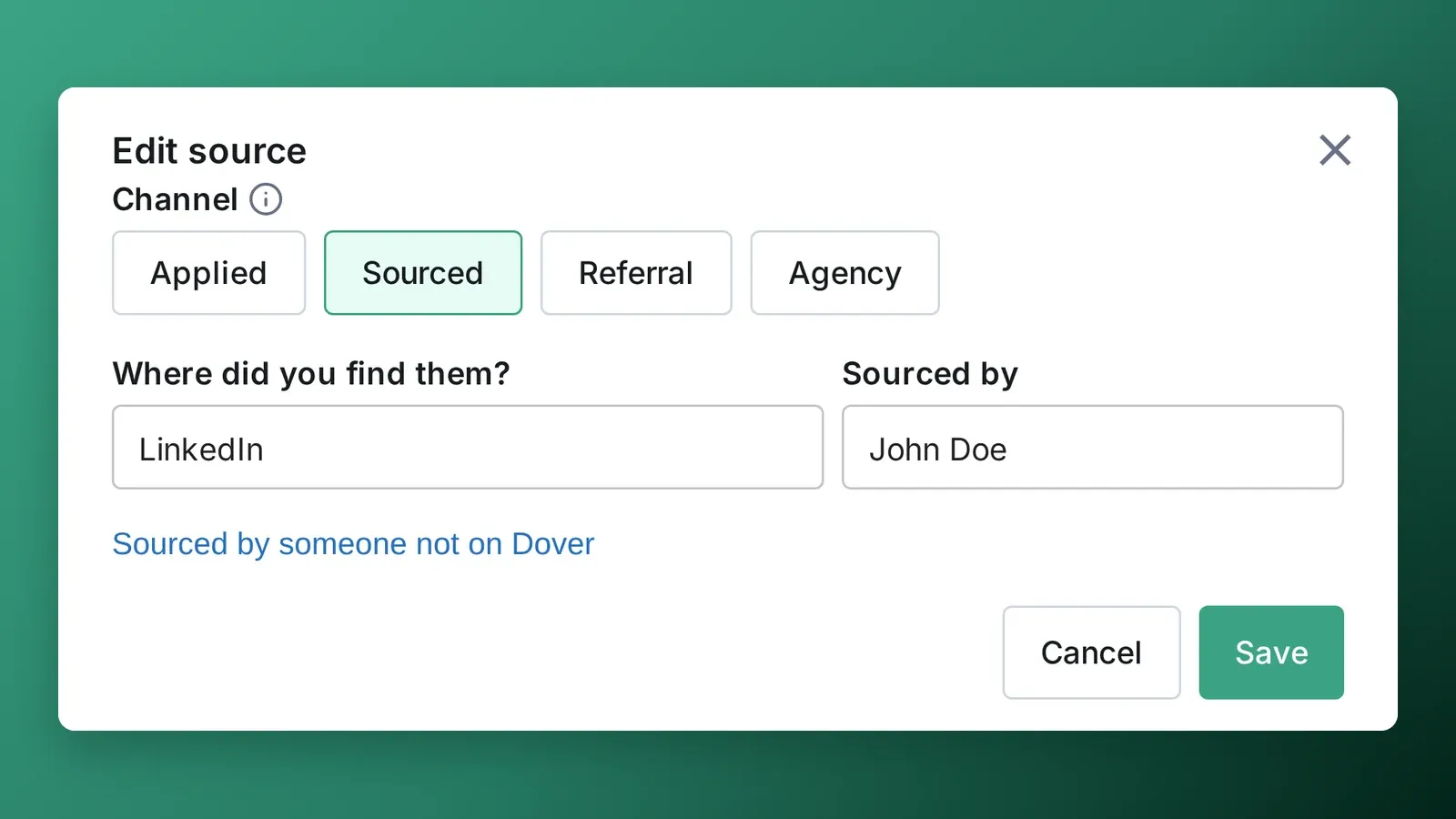
Choose a channel when you add someone, and Dover asks for what fits it:
- Applied: the job board, if there was one.
- Sourced: where you found them and who sourced them, a teammate or someone not on Dover.
- Referral: the referrer’s name and email, and whether they’re an employee, investor or friend.
- Agency: the agency and its recruiter.
Hires by Channel and Hires by Source show which ones lead to hires. Candidate Report lists the channel, source and sourcer for each person.
Set up candidate sources
- Open a candidate’s profile.
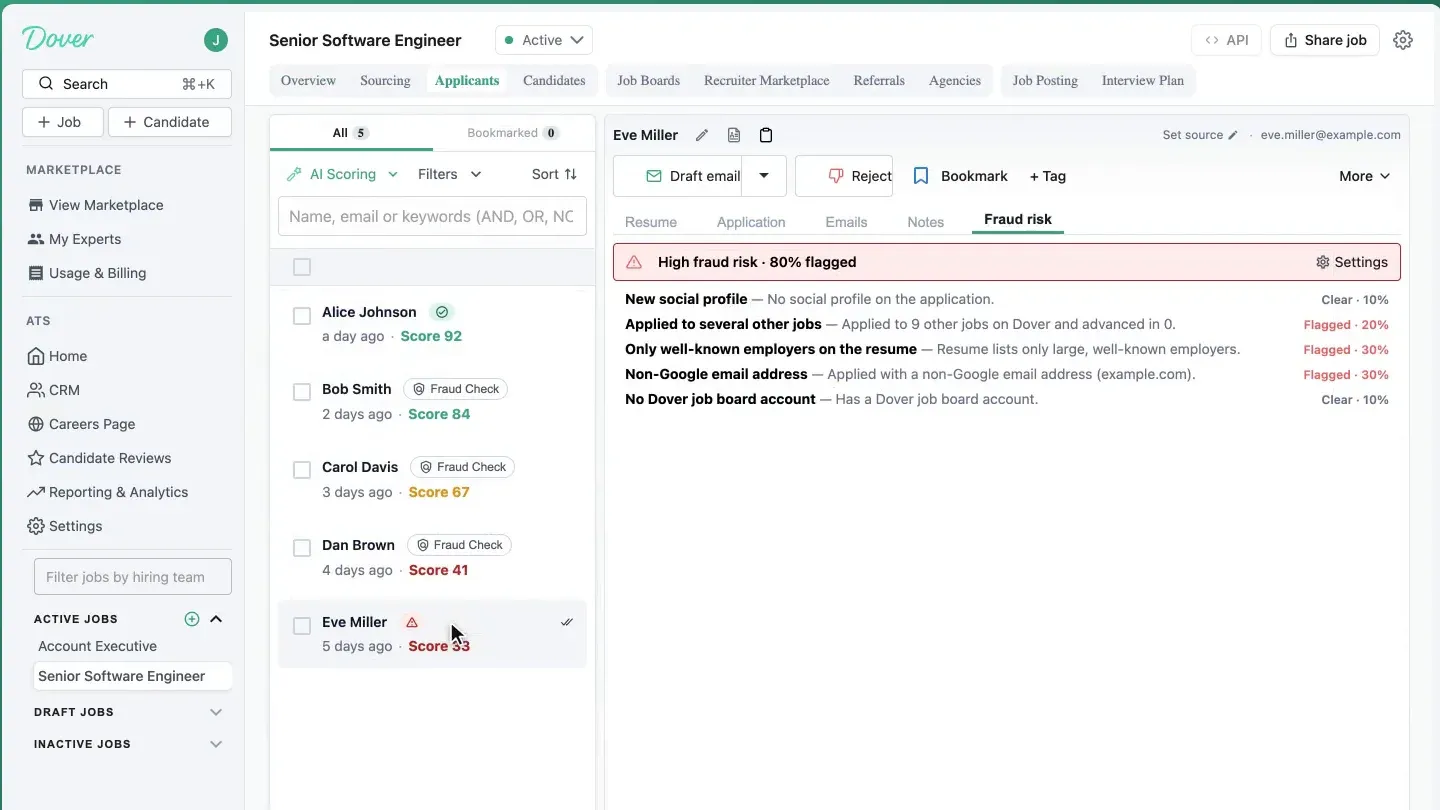
- Click the pencil icon next to Source, or Set source if it’s empty.
- Choose the channel and fill in the details. Anything your team has used before is suggested.
Nothing needs turning on. Start by checking Source on a recent hire’s profile. Full steps and screenshots are in the help article.
Candidate sources availability and pricing
Editing sources is on the Free and Premium plans. How far back reports go depends on your plan, and reports update every 24 hours, so a corrected source shows the next day. See plans and pricing.
Frequently asked questions
Is editing a candidate's source in Dover free?
Yes. You can add or change a candidate's source on the Free and Premium plans.
What is the difference between a channel and a source in Dover?
A channel is how the candidate came in, such as Applied or Referral. A source is where they were found, such as LinkedIn or an agency.
When do Dover reports show a corrected candidate source?
Analytics and reports update every 24 hours, so allow a day.