Overview
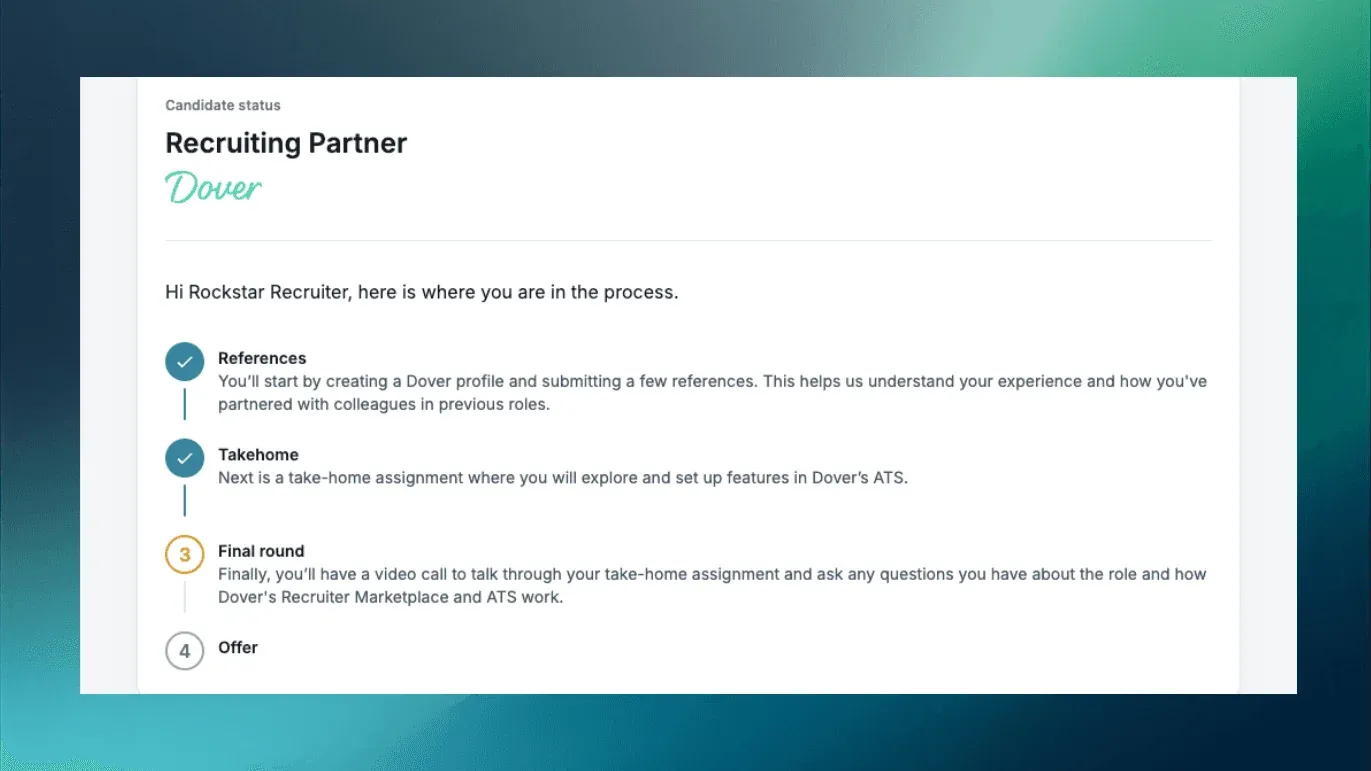
Dover’s candidate portal is a personal page where each candidate can see your interview stages and where they are in them. It’s included in the Free and Premium plans.
Candidates want to know what happens next, and how many steps are left. When they can’t tell, they email to ask, or they assume the worst and accept something else. Your team answers the same question again and again.
What the candidate portal does
- Shows the stages you choose. Every stage is hidden until you turn it on. Visible stages keep the order of your interview plan, and an internal step, such as a debrief, can stay hidden.
- Describes what to expect. Each visible stage can have a Public description: who the candidate will meet, how long it takes, or how to prepare. For example, “You will meet with members of the engineering team in a live coding exercise.” Write it yourself, or click Generate with AI for a draft you can edit.
- Marks progress. On a candidate’s page, the stages they have finished are checked off and the current one is marked.
- Shows the process before people apply. Visible stages also appear on the job’s application page.
You decide which stages appear, how they’re described and who gets a link.
How the candidate portal works
Open a candidate’s profile and click Generate + copy to get their link, then send it however you like. The link works without an account, so anyone who has it can see that candidate’s progress. Links can be created only for active candidates.
If you’d rather not send links by hand, Personalized Candidate Portal on the Job Posting tab emails candidates theirs when they reach the first stage you share.
Set up the candidate portal
Anyone with the Edit job permission can set it up.
- Open the job’s Interview Plan tab and click the pencil icon on a stage.
- Turn on Show this stage to candidates on their application and status page.
- Add a Public description, then click Save & preview to see the stages as candidates do.
Start with one open job: share two or three stages, describe each in a sentence, and send the link to the next person you advance. Full steps and screenshots are in the help article.
Candidate portal availability and pricing
The portal is on the Free and Premium plans. Two parts need ATS Premium: Generate with AI for descriptions, and the automatic email with the link. To change what candidates see, a member needs the Edit job permission for that job. See plans and pricing.
Frequently asked questions
Is the Dover candidate portal free?
Yes. It's on the Free and Premium plans. Writing stage descriptions with AI, and emailing the link automatically, need ATS Premium.
Do candidates need an account to open the Dover candidate portal?
No. Anyone with the link can see that candidate's progress, so send it only to the candidate.
Can candidates see every stage in the Dover candidate portal?
No. Each stage is hidden until you turn it on.
How do I turn on the Dover candidate portal?
Open a job's Interview Plan tab, click the pencil icon on a stage, and turn on Show this stage to candidates on their application and status page.