Overview
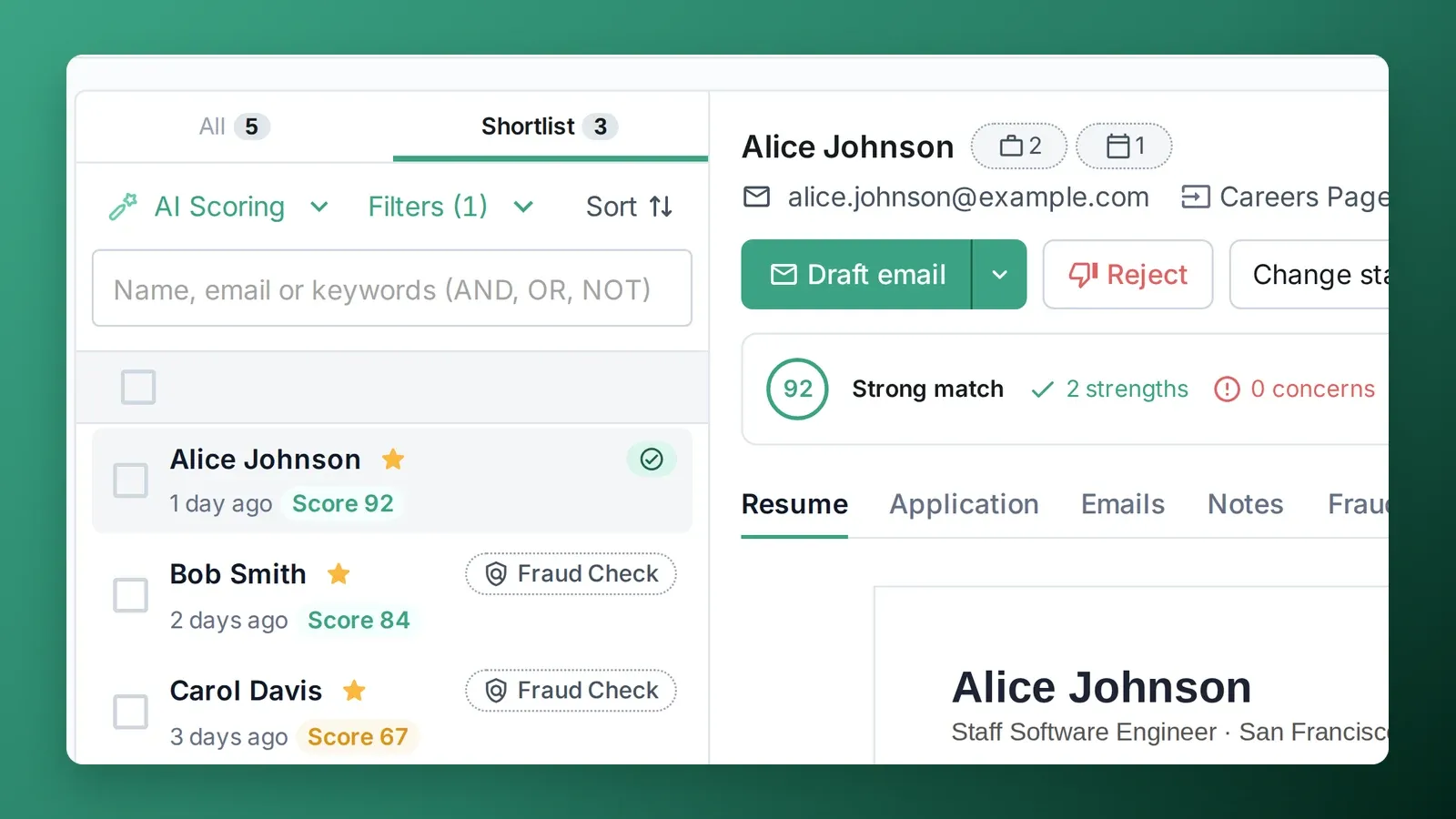
Dover’s bulk move and bulk tags let you move a group of applicants, or change their tags, from the Applicants tab. They’re part of ATS Premium, for teams that review a lot of applications. After a first pass, you usually know which applicants should go forward and which ones to keep for another role, and opening each application again takes longer than the review did.
What bulk move and bulk tags do
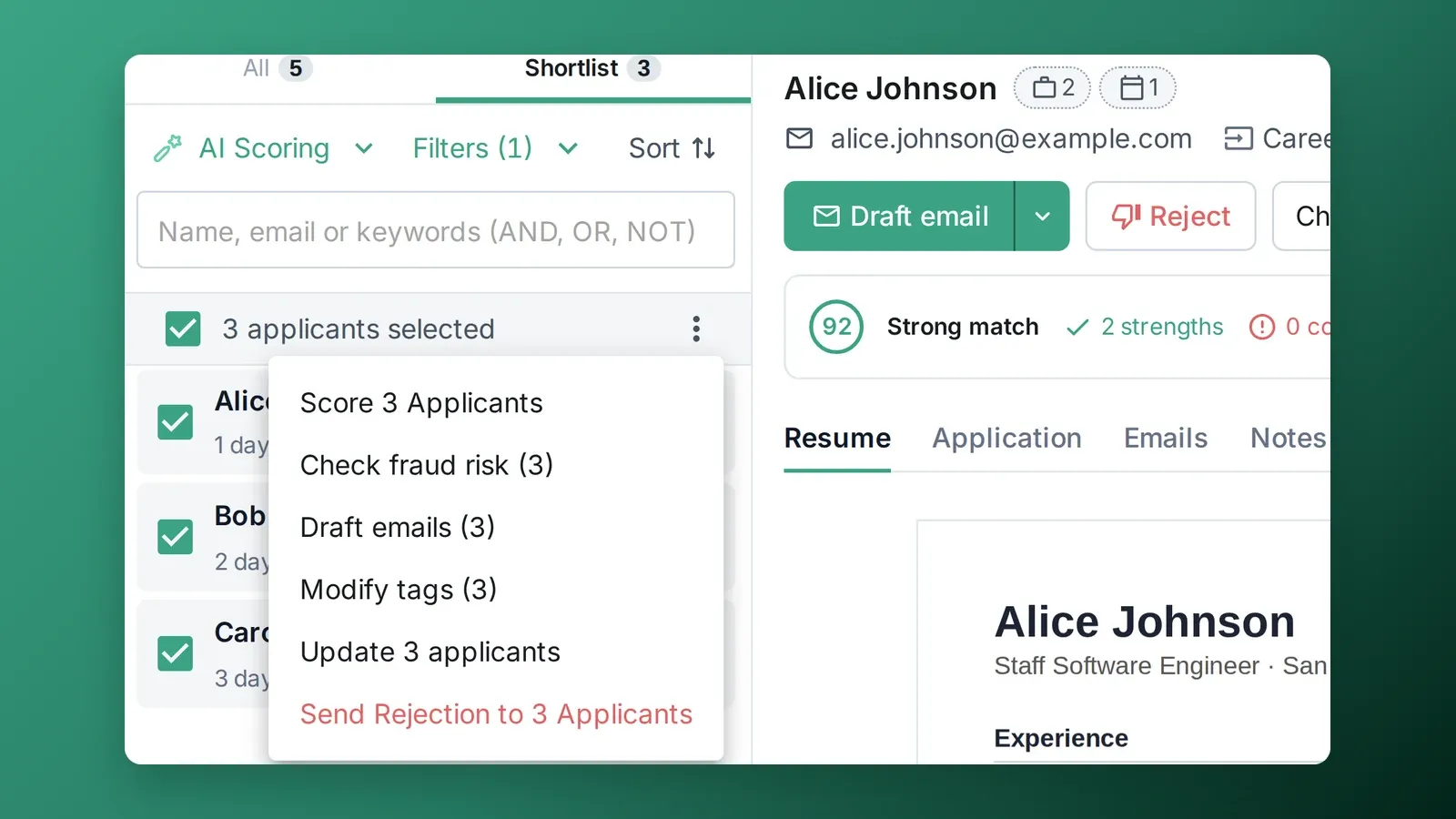
- Move applicants together. Choose Update N applicants to set a new Stage, Job or Status, or any combination. If the new stage sends its scheduling email automatically, the window tells you how many emails will be queued before you confirm.
- Change tags for a group. Choose Modify tags and switch between Add and Remove. When you remove tags, Dover lists only the tags your selection has. Adding a tag someone already has changes nothing for them.
The same tag action is on the Candidates tab, and the CRM can add and remove tags too. You pick who is in the group; nothing moves by itself.
Set up bulk move and bulk tags
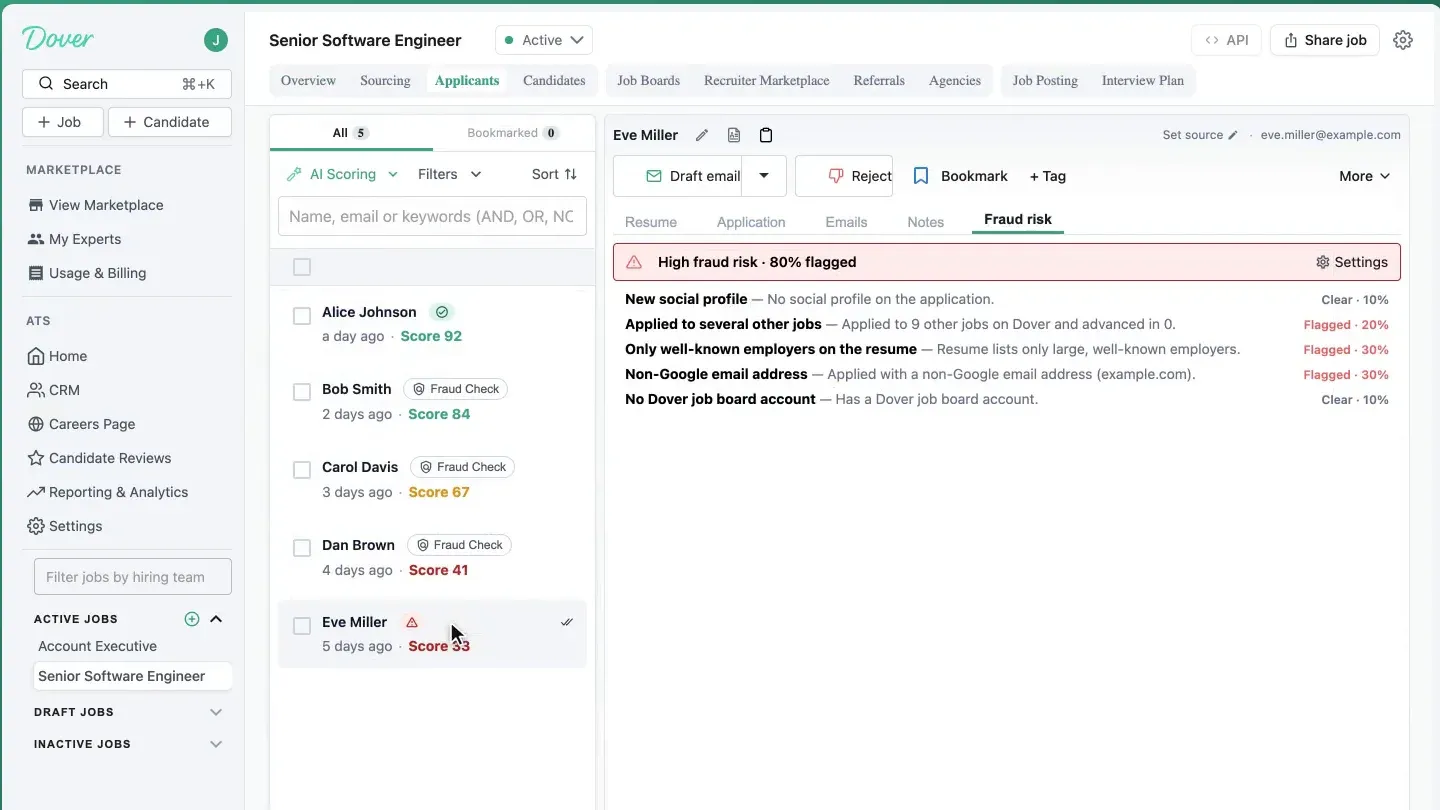
- Open a job and click Applicants.
- Check the applicants you want.
- Open the three-dot menu or right-click one of them, then choose Update N applicants or Modify tags.
Try it on your strongest few: move them to your first interview stage together. Full steps and screenshots are in the help article.
Bulk move and bulk tags availability and pricing
Bulk move and bulk tags are included in ATS Premium. They aren’t on the Free plan. See plans and pricing.
Frequently asked questions
Is moving and tagging applicants in bulk free in Dover?
No. Both are bulk actions, which need ATS Premium. On the Free plan you can still move and tag applicants one at a time.
Can I select every applicant at once for a Dover bulk action?
Yes. Check the box at the top of the list to select everyone in it.
Can I create a tag while tagging applicants in bulk in Dover?
Yes. When you add tags, you can type a new name and create it there.