Overview
Dover’s bulk email and bulk move let you contact a group of candidates, or move them to another job, in one step. They’re part of ATS Premium. When a role closes or a similar one opens, the people in its pipeline all need the same thing, and doing that one profile at a time takes an afternoon and makes it easy to miss someone.
What bulk email and bulk move do
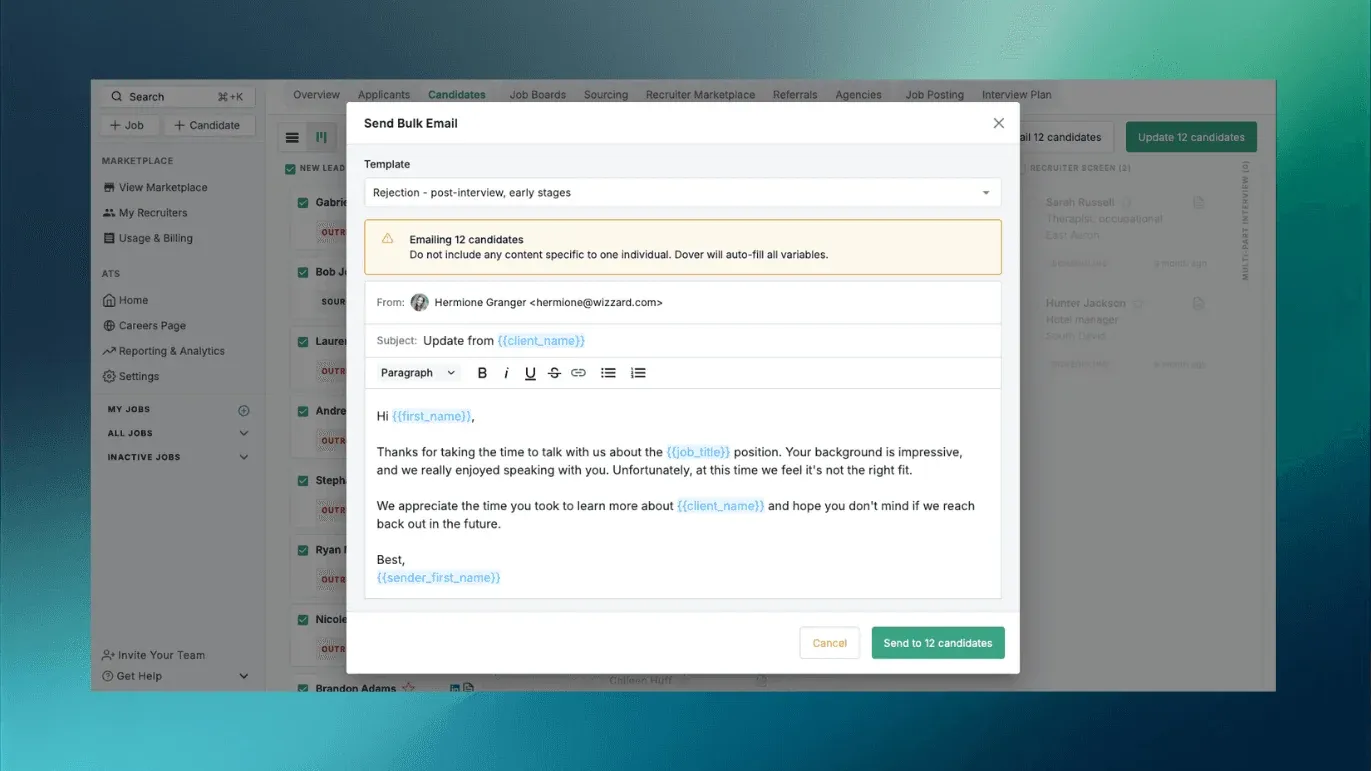
- Send one email to a group. Choose Draft emails and pick a template, or write the email from scratch. Dover fills in variables such as the candidate’s first name and the job title for each recipient. Leave out anything specific to one person.
- Choose the sender. Pick the From address, and add people in CC or BCC. Dover sends in the background, and a progress card follows it.
- Move a group to another job. Choose Update N candidates, then pick a new Job and the Stage they should land in, from that job’s interview plan. Each candidate’s activity records the move.
You still choose who is included and what the email says.
Set up bulk email and bulk move
- Connect your email under Account settings → Email & Calendar.
- Open a job, click Candidates and check the people you want.
- Click Actions and choose Draft emails or Update N candidates.
Start with a small group and a template your team already uses. Full steps and screenshots are in the help article.
Bulk email and bulk move availability and pricing
Bulk email and bulk move are included in ATS Premium. You can email or move up to 10,000 candidates at a time. See plans and pricing.
Frequently asked questions
Is Dover bulk email free?
No. Bulk email and bulk move are part of ATS Premium.
What happens to candidates with no email address in a Dover bulk email?
Dover skips them and tells you how many were skipped, with some of their names. Everyone else still gets the email.
Can I bulk move candidates to a draft job in Dover?
No. Draft jobs are grayed out in the Job list. Activate the job first, then move candidates into it.