Overview
Dover’s referral portal is a separate sign-in where agencies, coworkers, investors and friends submit candidates for the jobs you share with them. The Free plan includes up to 3 referrers, and agencies need Premium.
Candidates from outside your team tend to arrive as email attachments, and the person who sent them then asks for news. Someone on your side has to enter each resume, remember who deserves the credit and answer every status question. Giving an agency a full account isn’t an answer either, because it would see far more than its own work.
What the referral portal does
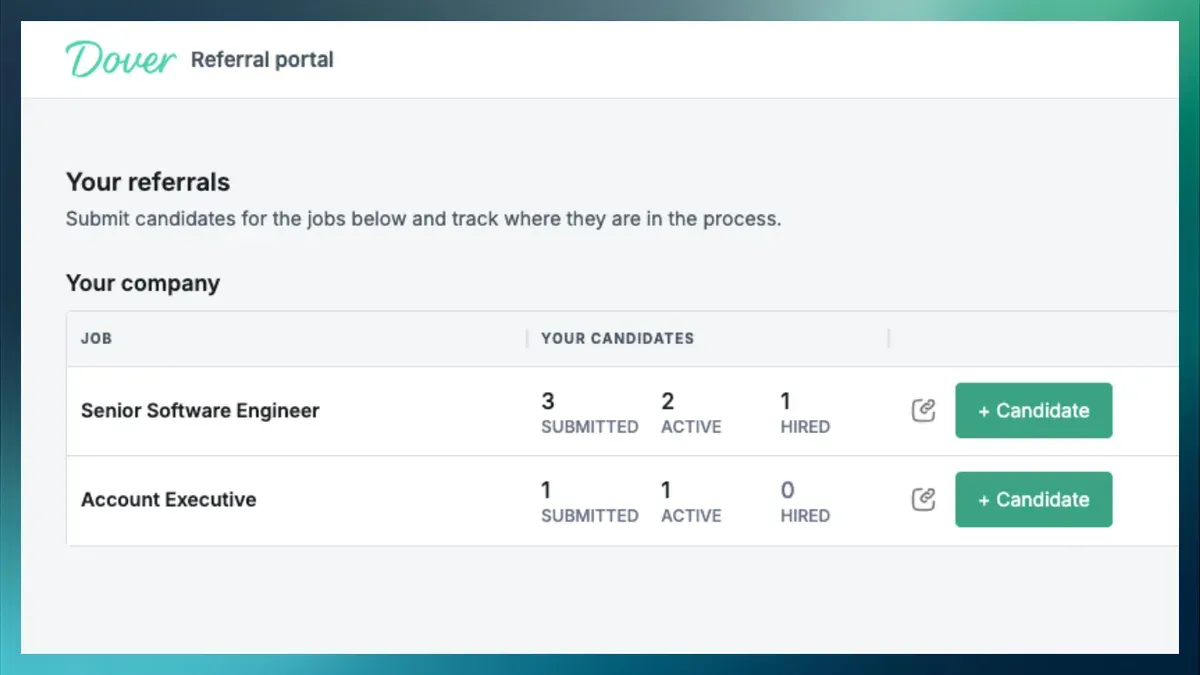
- Limits each person to their jobs. Referrers and agency recruiters see only the jobs you selected for them, and never any others.
- Lets them submit candidates. + Candidate opens a short form. A resume fills in the contact details, and there is room to explain why the candidate is a good fit.
- Credits them for applicants. A copy link icon gives them a link for the job. Candidates who come through it are credited to them.
- Shows them progress. Each job has Submitted, Active and Hired counts, and clicking a job opens the candidates that person submitted, with each one’s current stage.
You still review every candidate and decide who moves forward.
How the referral portal works
When you invite someone, Dover emails them a link to the portal. For a referrer, you enter their email and, if you like, their relationship to the company. For an agency, you pick one you’ve added before or type a new name. To see the portal the way they will, click Preview portal, which shows sample jobs and candidates.
On your side, the job’s Referrals and Agencies tabs show one row for each person, with submitted and active candidates and hires. Click a row to see who they sent.
When an engagement ends, deactivate the recruiter on that job, or use Deactivate all jobs to remove them everywhere. You can turn jobs back on later.
Set up the referral portal
- Go to Settings → Referrers & Agencies and click + Invite. You can also start from a job’s Referrals or Agencies tab, which fills in that job for you.
- Choose the Referrer or Agency tab and enter who you’re inviting.
- Under Jobs, select every job they can submit to. Dover emails them a link to the portal.
Start by opening a job’s Referrals tab and clicking + Referrer to invite one coworker. If you’re on Premium and already work with an agency, invite one of its recruiters to a single job first. Full steps and screenshots are in the help article.
Referral portal availability and pricing
- Free: up to 3 invited referrers. Deactivating a referrer doesn’t free up a place. Agencies aren’t included.
- Premium ($199/month) and Enterprise: unlimited referrers, plus agencies.
People you invite don’t pay for the portal and aren’t added as members of your account. See plans and pricing.
Frequently asked questions
Is the Dover referral portal free?
On the Free plan you can invite up to 3 referrers. Agencies and unlimited referrers need Premium, and Enterprise includes them too.
Can an agency see my whole Dover account through the referral portal?
No. An agency recruiter sees only the jobs you shared and the candidates they submitted. They aren't members of your account.
What happens to old Dover referral and agency links?
They no longer open a submission form. They ask the person to sign in to the portal with the email address you invited. Candidates already submitted stay where they are.