Overview
Dover’s Outlook email integration lets you write to candidates in Dover and send from your own Outlook address. It’s for teams on Microsoft 365, and it’s included in both the Free and Premium plans.
Recruiting email gets hard to follow when it’s split between an inbox and a hiring tool. A recruiter writes from Outlook, the candidate replies there, and nobody else on the hiring team can see what was promised. Connecting an email account to Dover solves that, but it used to mean having a Google account. Microsoft teams can now connect too, and how much of your mailbox Dover can reach is your choice.
What Outlook email in Dover does
- Send from your own address. Emails you send from a candidate’s profile go out from your Outlook address, so candidates see a name they know. Emails you schedule are sent the same way.
- Keep each account personal. Each person connects their own account. Connecting yours doesn’t let teammates send as you.
- Keep the conversation with the candidate. With Send + Read Emails, a reply appears in the candidate’s activity feed, with the messages you sent from Dover. You can pick up the conversation from there without searching your inbox.
How Outlook email permissions work
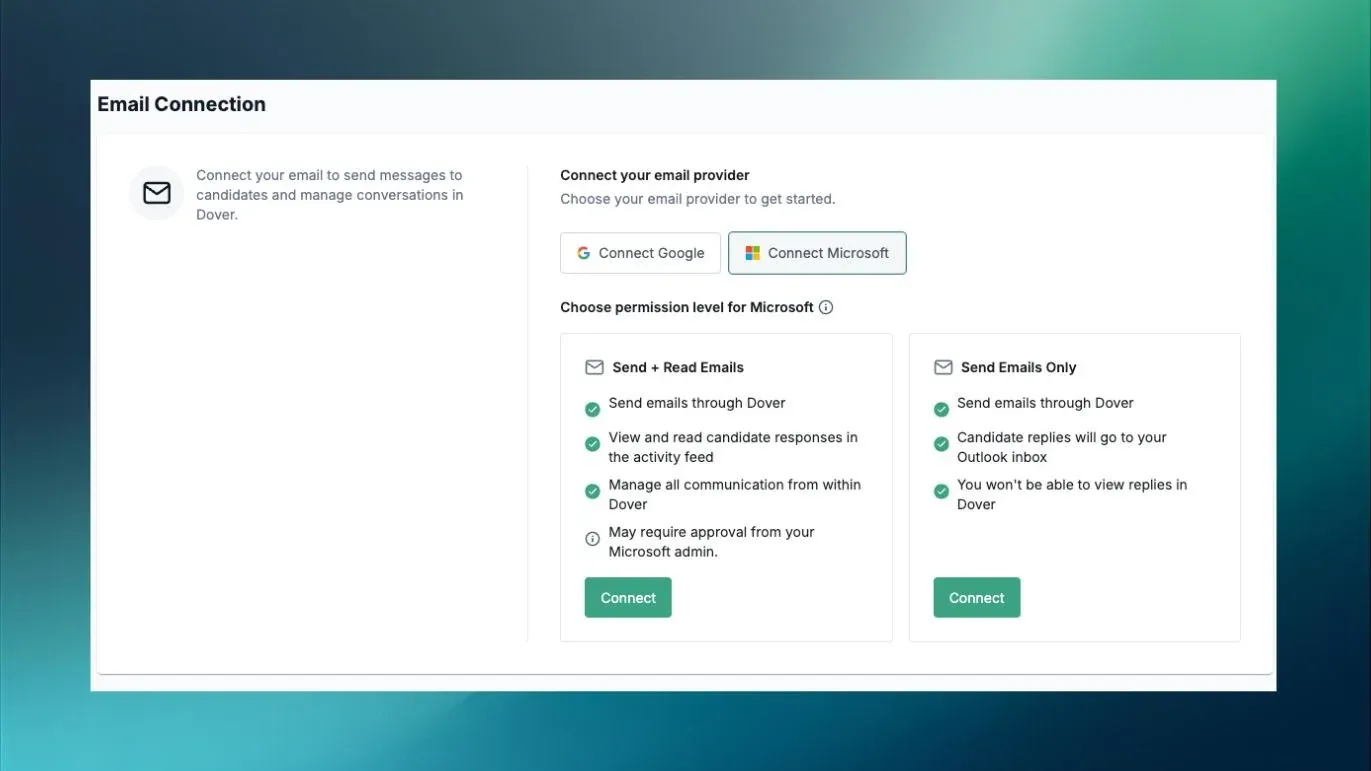
You pick one of two levels when you connect:
- Send + Read Emails: Dover sends your messages and shows candidates’ replies in the activity feed. This level may need approval from your Microsoft admin.
- Send Emails Only: Dover sends your messages. Replies go to your Outlook inbox and can’t be seen in Dover.
Pick the first if your hiring team wants the whole conversation in one place. Pick the second if your company limits which apps can read mail. You still write and send each message yourself.
Set up Outlook email
- Go to Account settings → Email & Calendar.
- Click Connect next to Microsoft Outlook under Email.
- Choose a level, click Connect and sign in to Microsoft.
If you want replies in Dover, ask your Microsoft admin about approval first. Full steps and screenshots are in the help article.
Outlook email availability and pricing
Outlook email is included in Free and Premium, for Microsoft business accounts. By default each person can send 200 emails a day and 50 an hour from Dover. Changing those limits needs Premium, which is $199/month. Microsoft 365 also has its own limits. See plans and pricing.
Frequently asked questions
Is the Dover Outlook email integration free?
Yes. Sending and receiving candidate email with Outlook is included in Free and Premium.
Why does Microsoft ask for admin approval when I connect Outlook to Dover?
Send + Read Emails may need a Microsoft admin in your company to approve it. Send Emails Only asks for fewer permissions.
Can I use a personal Outlook account with Dover?
No. You need a Microsoft business account.