Overview
Dover’s draft jobs give you a place to set up a role before candidates can see it. Every new job starts in Draft, on Free and Premium, and goes live only when you activate it. If a job is live from the moment it is created, candidates can find a half-written posting, and applications can arrive before anyone is ready to review them.
What draft jobs do
- Keep the role private while you prepare it. While a job is a draft, its application page isn’t live. Your team can write the description, set the job details, build the application form and plan the interviews.
- Hold back the work that needs a live job. A draft can’t be published to your careers page or posted to job boards, can’t be sourced for or have referrers or agencies added, and can’t take candidates or applicants. The tabs for that work, such as Applicants and Job Boards, show This job is not active until you activate it.
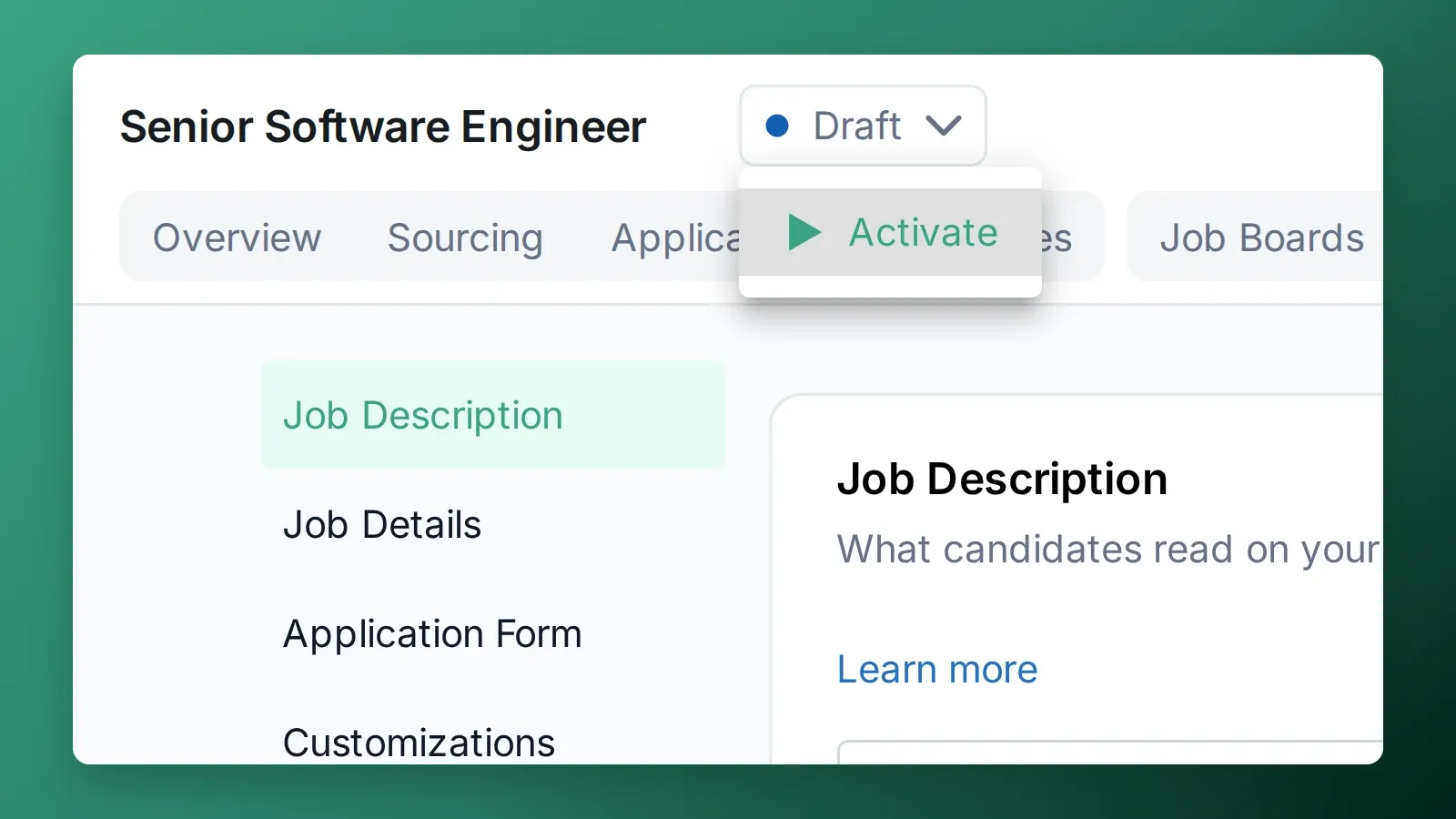
- Show which jobs are live. The status sits next to the job title: Draft, Active or Inactive. The left sidebar groups jobs the same way, under Active Jobs, Draft Jobs and Inactive Jobs, and the Home page has a tab for each group.
You choose the moment a job opens.
How draft jobs work
When you click Save on the Job Posting tab of a draft, Dover asks whether you want to activate it. Choose Activate job to make it live, or Keep as draft to keep working. If Publish to Careers Page is on, the job is published there when you activate it.
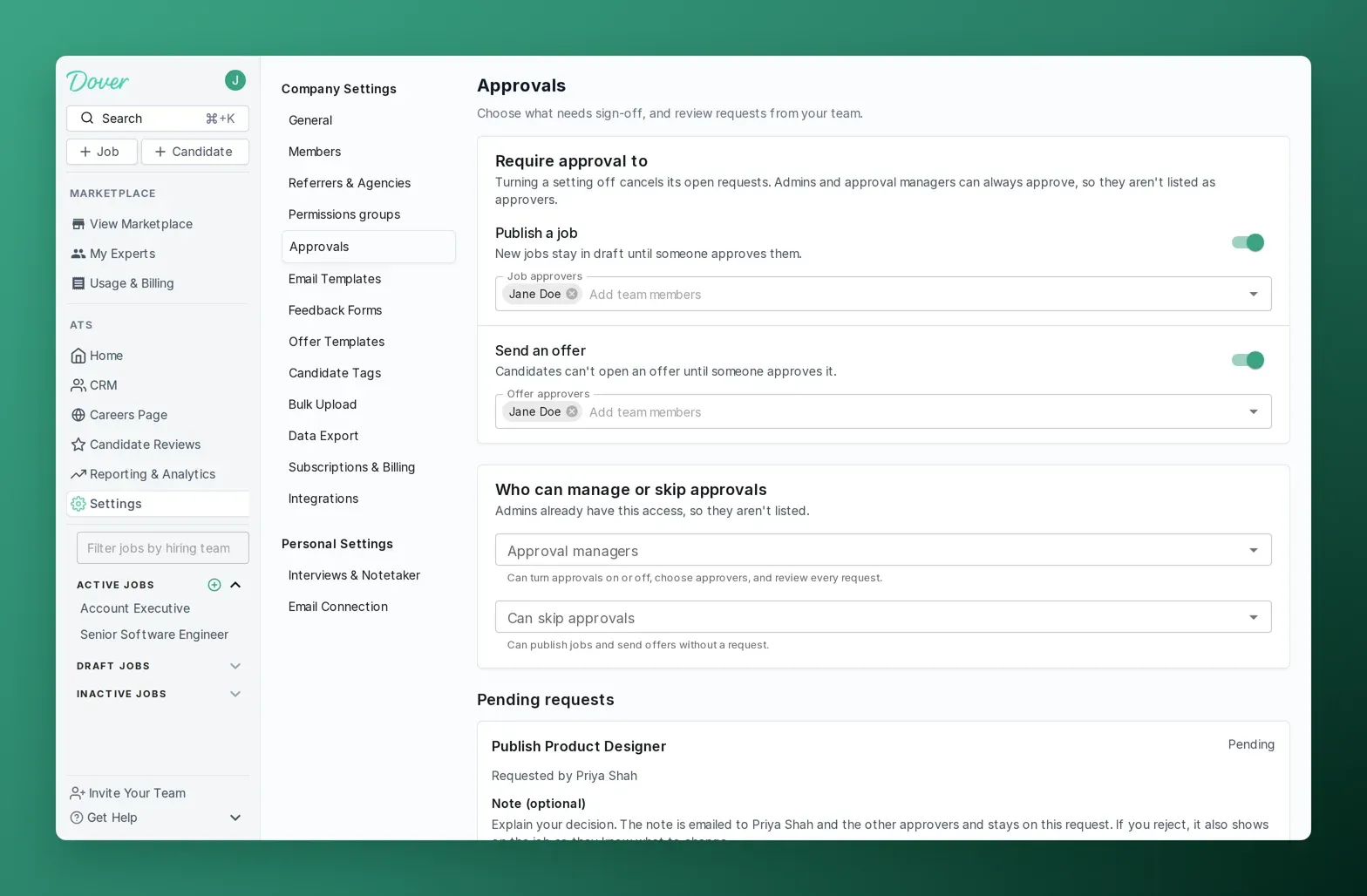
You can also activate it at any time from the status next to the job title. If your company requires approval to publish a job, you see Request approval instead, and the job goes live once an approver signs off. Copies made with Duplicate Job start as drafts too.
To narrow a group of jobs, use Filter jobs by hiring team and pick one or more people. It shows jobs where any of them is the recruiter, hiring manager, recruiting partner or on the hiring team.
Set up draft jobs
- Click + Job at the top of the left sidebar, fill in the panel and click Add Job. The job opens on its Job Posting tab in Draft.
- Finish the posting, the application form and the interview plan.
- Click Save on the Job Posting tab and choose Activate job, or click Draft next to the job title and click Activate.
Nothing needs to be turned on. Before you activate your next job, have the hiring manager read the posting and the interview plan while it is still a draft. Full steps and screenshots are in the help article.
Draft jobs availability and pricing
Draft jobs are included on Free and Premium, with no limit. Changing a job’s status requires the Edit job permission. Jobs that existed before this change kept their status. Job approvals are an Enterprise feature. See plans and pricing.
Frequently asked questions
Are Dover draft jobs free?
Yes. New jobs start as drafts on Free and Premium.
How do I activate a draft job in Dover?
Click Draft next to the job title and click Activate, or save the Job Posting tab and choose Activate job.
What can't I do with a Dover draft job?
You can't publish it to your careers page or job boards, source for it, or add candidates, applicants, referrers or agencies until you activate it.