Overview
Dover’s Calendly integration connects an interviewer’s Calendly account to Dover, so Dover knows when a candidate books, moves or cancels. It’s included in Free and Premium, for teams whose interviewers already run their calendar through Calendly.
Until now you could paste a Calendly link into Dover, but Dover couldn’t see past it. When a candidate picked a time, someone had to record the interview and move the candidate by hand. If the candidate canceled later, the pipeline stayed wrong until somebody noticed.
What the Calendly integration does
- Records each booking. Dover puts every booking on the candidate’s profile, uses it to move the candidate along and prompts interviewers for feedback. Before it acts, it checks with Calendly that the booking still stands.
- Sends each candidate a personal link. Candidates open a Dover page with your Calendly event inside it, and their name and email are passed along. Once they’ve booked, the same page confirms the date and time.
- Handles changes. If plans change, the candidate can open the link again and click Reschedule or Cancel.
- Sends reminders. With Reminder emails on, Dover emails you and the candidate 1 day and 1 hour before the interview.
Interviewers keep their Calendly availability and event types, and each person decides whether to connect.
How the Calendly integration works
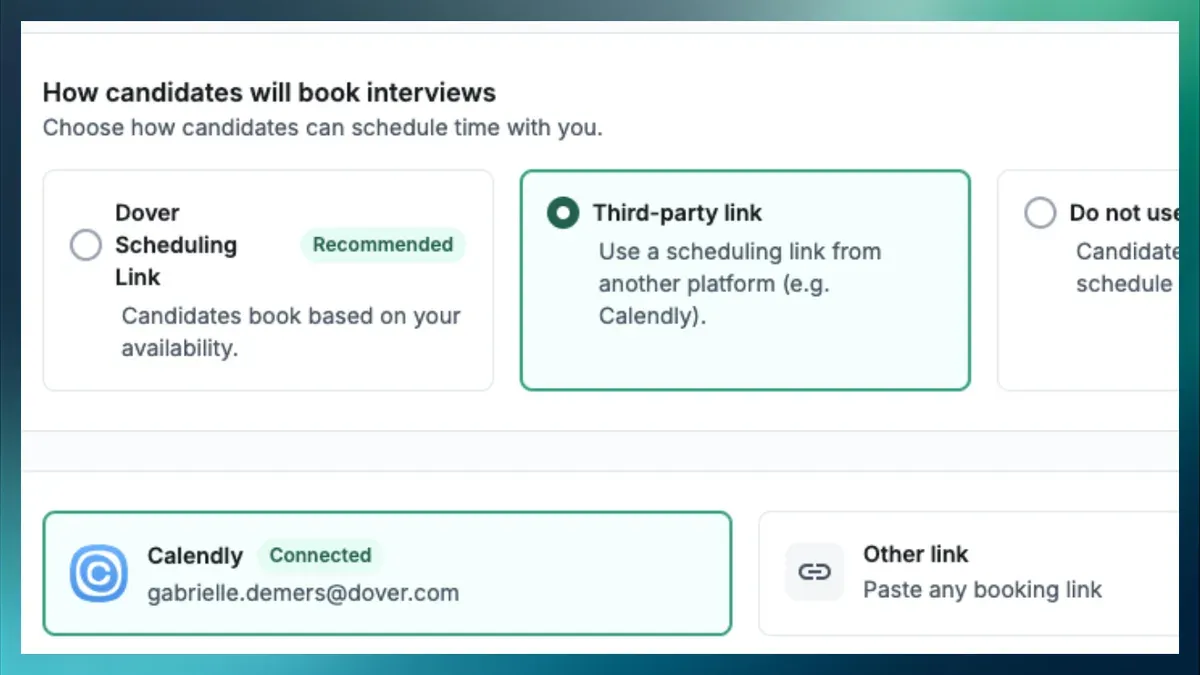
Each interviewer connects their own account, then picks an event type in Account settings → Scheduling. They choose Third-party link, then the Calendly card, and click Event type. Dover lists each one with its length, and the choice is saved as soon as you pick it.
In Calendly, turn on Check for conflicts so candidates can’t book over events already on your calendar. If your Calendly plan already sends reminders, Dover asks you to confirm they’re off so candidates don’t get two.
Set up the Calendly integration
- Each interviewer goes to Settings → Integrations and clicks Calendly.
- Click Connect Calendly and sign in.
- Click Choose event type and pick the event candidates book.
Start with one interviewer and one stage, and check that the first booking appears on the candidate’s profile. Full steps and screenshots are in the help article.
Calendly integration availability and pricing
The integration is included in Free and Premium. Connecting your own Calendly account doesn’t need the Integrations company permission. Dover only tracks bookings for interviewers who connect. See plans and pricing.
Frequently asked questions
Is the Dover Calendly integration free?
It's included in both Free and Premium. You need your own Calendly account.
How do I turn on Dover's reminders for Calendly interviews?
Choose your event type in Account settings, Scheduling, then turn on Reminder emails. If your Calendly plan sends reminders, turn those off in Calendly first.
Can I use a booking tool other than Calendly with Dover?
Yes, choose Other link and paste your booking link. Dover can't see what candidates book there, so you track those interviews yourself.