Overview
Dover’s automatic stage emails send a stage’s scheduling email to a candidate when someone on your team moves them into that stage. They’re part of ATS Premium and Enterprise, for teams that move candidates through interviews every day.
Moving a candidate forward and inviting them to book used to be two jobs. When you moved a dozen people at once, or someone forgot the second step, candidates sat in a stage without hearing from you.
What automatic stage emails do
- Send on the move. The email is the Scheduling template already chosen for the stage, with its interviewer and scheduling link filled in for that candidate.
- Work stage by stage. The setting is off until you turn it on, and you can use it on interview and assessment stages. Each stage that sends by itself carries an Auto-send tag in the interview plan, so anyone working on the job can see which moves email a candidate.
- Follow every kind of move. The email goes out whether you use the stage menu on a candidate’s profile, drag a candidate on the board, or run a bulk update.
You decide which stages work this way.
How automatic stage emails work
Each email waits about a minute. Use Undo in the message that confirms the move, or cancel the email from the candidate’s activity.
For a bulk update, the window tells you how many emails will be queued, which address sends them and when the last one should go out. Your email sending limits still apply, so a large batch is spread out.
Dover skips the email, and tells you why, if the candidate is archived, has no email address, or the template has a field that can’t be filled in. If the candidate leaves the stage or is rejected before it sends, the email is dropped. A candidate gets each stage’s automatic email once, even if they’re moved out and back in.
Set up automatic stage emails
- Open a job and click its Interview Plan tab.
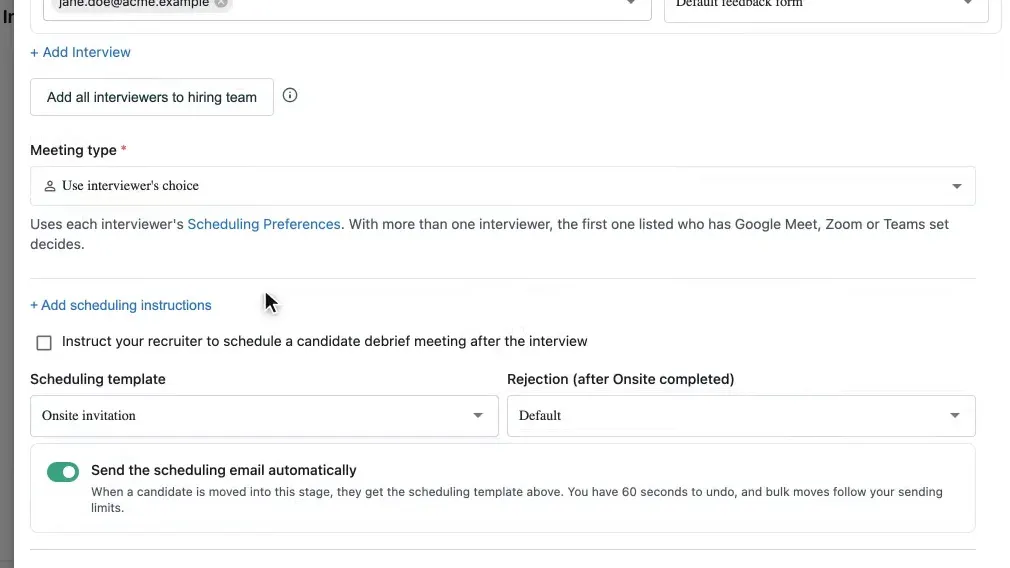
- Click a stage and check its scheduling template.
- Turn on Send the scheduling email automatically below the email templates, then click Save.
Start with your first interview stage and move one candidate, so you can read the email in their activity. Full steps and screenshots are in the help article.
Automatic stage emails availability and pricing
Automatic stage emails are part of ATS Premium at $199/month, and of Enterprise. The scheduling email sender needs a connected email account. Deleting a custom template turns the setting off for the stages that send it, and the delete window lists them first. See plans and pricing.
Frequently asked questions
Are Dover automatic stage emails free?
No. They need ATS Premium, which is $199/month, or Enterprise. On Free the switch is off and you send scheduling emails yourself.
How do I turn on automatic stage emails in Dover?
Open a job's Interview Plan tab, click a stage, choose its scheduling template, turn on Send the scheduling email automatically, and click Save.
Will a candidate get the same Dover automatic stage email twice?
No. A candidate gets each stage's automatic email once, even if they're moved out and back in. An email you cancelled doesn't count.