Overview
Dover’s Draft with AI now writes the job description directly in the Job Posting editor, and Refine with AI changes it in the same place. It’s included in Free and Premium for anyone who can edit a job. A draft written in another tool still has to be pasted and reformatted, and the first draft is often the slowest part of opening a role.
What Draft with AI does
- Drafts from a few details. Describe the role, for example years of experience, location or remote policy, required skills and what the team does. The text appears in the editor as it is written.
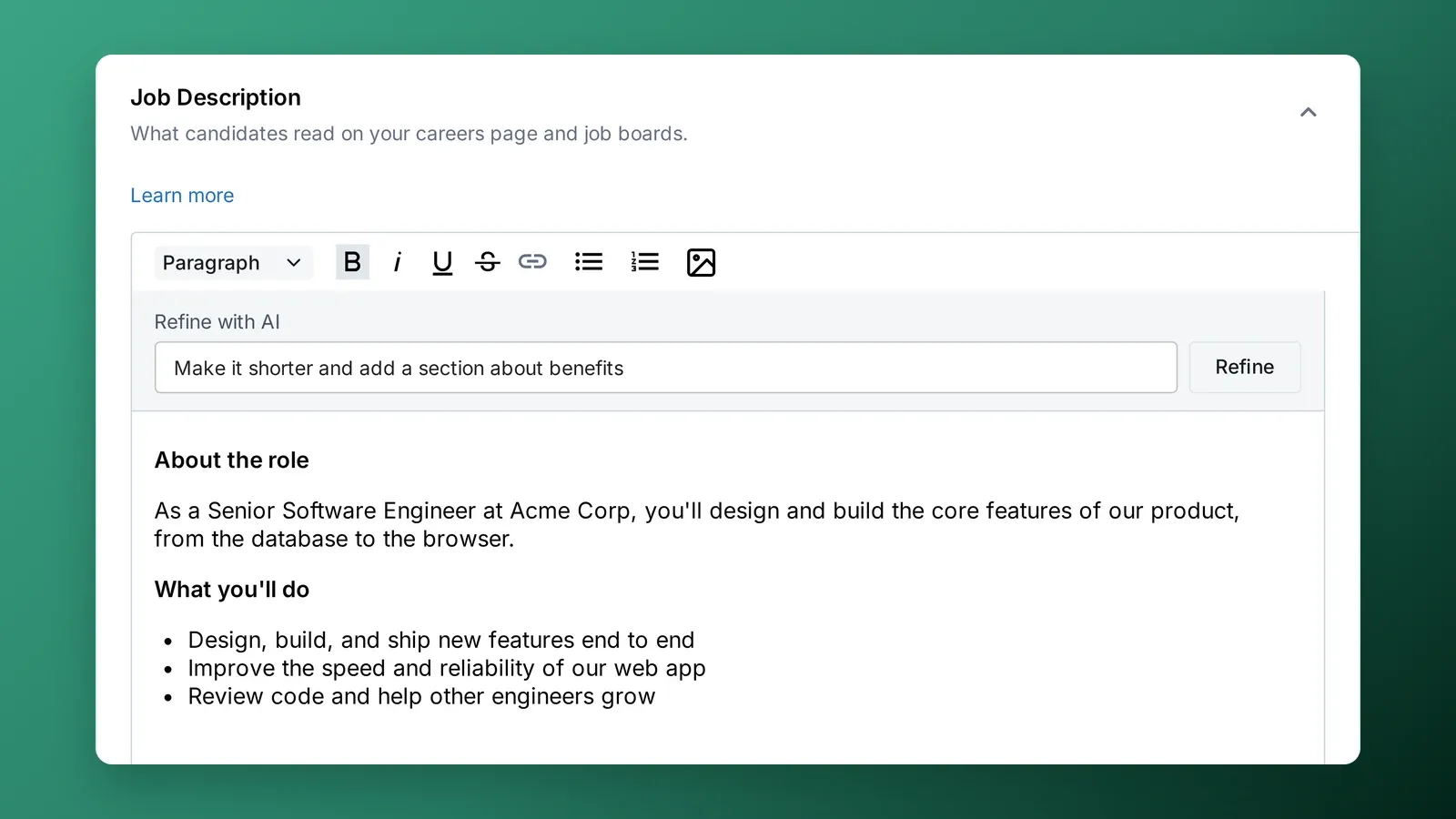
- Refines in plain words. Type a change such as “Make the requirements section shorter” or “Add a section about benefits”. This also works on a description you wrote or pasted.
- Leaves the words to you. You can edit the text and formatting by hand at any time.
Set up Draft with AI
- Open a job, click Job Posting and find Job Description.
- Clear any old text to see Draft with AI, describe the role and click Generate. Or type a change under Refine with AI and click Refine.
- Click Save.
Read the result through, especially pay, location and requirements, before you save. Full steps and screenshots are in the help article.
Draft with AI availability and pricing
Included in Free and Premium. You need the Edit job permission; without it, the tab is view only. See plans and pricing.
Frequently asked questions
Is the Dover Draft with AI job description tool free?
Yes. AI job descriptions are included in both Free and Premium.
Can I edit what Dover's Draft with AI writes?
Yes. Change the text and formatting yourself, or describe the change under Refine with AI.
Where is the Dover Draft with AI button?
On a job's Job Posting tab, in the Job Description editor's toolbar. It appears while the description is empty.