← Dover MCP

Dover MCP tools reference

Every Dover MCP tool, and what your AI can do with it

Dover MCP gives Claude, ChatGPT, Cursor, Codex, and other AI clients 29 tools for jobs, applicants, candidates, interviews, and scorecards. Ask in plain English, and your AI client picks the right tool. Below: each tool, its OAuth scopes, and how the server works.

Read tools
16
Write tools
13
Works with
Claude, ChatGPT, Cursor, Codex

What your AI can do in Dover

Read tools only look things up. Write tools change data in Dover. Every tool works with your Dover permissions, so your AI sees only the jobs and candidates you can. See the technical details for auth, scopes, and limits.

Jobs

See every role you can access, read the full job description and hiring team, and open new roles.

Try asking

  • “Which of our jobs are still active?”
  • “Who is on the hiring team for the Senior Backend Engineer role?”
  • “Open a new Product Designer job with Maya as hiring manager.”
  • List jobs

    Read
    list_jobs

    List the jobs you can see in Dover, active and inactive.

    Scope: jobs:read

  • Get job

    Read
    get_job

    Read a job’s full description, requirements, and hiring team: hiring manager, recruiter, and members.

    Scope: jobs:read

  • Add a job

    Read
    prepare_add_job

    Open an interactive job form in your AI client, with the teammates who can be hiring manager or recruiter.

    Scope: jobs:write

  • Add job

    Write
    add_job

    Create an active job with a hiring manager, an optional recruiter, and a hiring timeline.

    Scope: jobs:write
Applicants & AI scoring

Review inbound applicants ranked by Dover’s AI match score, with the pros and cons behind each score.

Try asking

  • “Show me the top 10 applicants for the Account Executive role from this week.”
  • “Why did this applicant score lower than the others?”
  • “Which LinkedIn applicants are still active in the Applied stage?”
  • Get top applications

    Read
    get_top_applications

    Rank applications for a job or your whole account by AI match score. Filter by date, stage, status, or source.

    Scopes: applications:read, candidates:read

  • Get application

    Read
    get_application

    Read one application in full: resume, application answers, match score explanation, and the linked candidate.

    Scopes: applications:read, candidates:read

Candidates & pipeline

Find candidates, add new ones, and move them through your pipeline without leaving your AI chat.

Try asking

  • “Find Jordan Lee and move them to Onsite.”
  • “Add this resume to the Data Engineer job as a referral from Sam.”
  • “Reject the candidates in Phone Screen for the closed Ops role and note why.”
  • “Snooze Priya until January 15. She can’t start before then.”
  • “What did we last email Priya, and is there a duplicate record for her?”
  • Find candidate

    Read
    find_candidate

    Search candidates by name or email, and filter by job, stage, status, channel, or source.

    Scope: candidates:read

  • Add a candidate

    Read
    prepare_add_candidate

    Open an interactive candidate form in your AI client, with your jobs, their pipeline stages, and source options.

    Scope: candidates:write

  • Add candidate

    Write
    add_candidate

    Add a candidate to a job as applied, sourced, agency, or referral, with an optional resume. This is the same flow as adding a candidate in Dover.

    Scope: candidates:write

  • Update candidate stage

    Write
    update_candidate_stage

    Move a candidate to another stage in the job’s pipeline. Your Slack stage notifications still run.

    Scope: candidates:write

  • Reject candidate

    Write
    reject_candidate

    Reject a candidate with a reason from your rejection list, and add an optional note. The candidate is not emailed.

    Scope: candidates:write

  • Snooze candidate

    Write
    snooze_candidate

    Put a candidate on hold. With a date, Dover makes them active again on that date and reminds the hiring team.

    Scope: candidates:write

  • Add candidate note

    Write
    add_candidate_note

    Add a note to a candidate’s Notes tab, for example a summary of a call.

    Scope: candidates:write

  • List candidate emails

    Read
    list_candidate_emails

    Read the email history between your team and a candidate: synced Gmail and Outlook emails, outreach, and emails sent from Dover.

    Scope: candidates:read

  • Find possible duplicate

    Read
    find_possible_duplicate

    Check whether a candidate is the same person as another record, matched on email, phone, LinkedIn, or exact name.

    Scope: candidates:read

  • Merge duplicate

    Write
    merge_duplicate

    Merge two records for the same person. Their candidates, emails, and phone numbers end up on one record, and candidates stay on their jobs.

    Scope: candidates:write

Candidate tags

Organize candidates with your own tags, the same tags your team uses in Dover.

Try asking

  • “Tag everyone I spoke to at the career fair with “Career fair 2026”.”
  • “Which tags are on Alex’s profile?”
  • List candidate tags

    Read
    list_candidate_tags

    List your account’s candidate tags and how many candidates have each one.

    Scope: candidates:read

  • Get candidate tags

    Read
    get_candidate_tags

    See the tags on one candidate.

    Scope: candidates:read

  • Create candidate tag

    Write
    create_candidate_tag

    Create a new tag with a name and color.

    Scope: candidates:write

  • Apply candidate tag

    Write
    apply_candidate_tag

    Add a tag to a candidate.

    Scope: candidates:write

  • Remove candidate tag

    Write
    remove_candidate_tag

    Remove a tag from a candidate.

    Scope: candidates:write

Interviews & feedback

Prepare for interviews with full candidate context, then turn your call notes into a completed scorecard.

Try asking

  • “Prep me for my 2pm interview with Chris: resume, answers, and earlier feedback.”
  • “Fill in my scorecard for Chris from these notes, but don’t submit it yet.”
  • Get interview prep

    Read
    get_interview_prep

    Get a candidate’s resume, application answers, match score, earlier interview feedback, and notes in one call.

    Scopes: candidates:read, interviews:read

  • List candidate interviews

    Read
    list_candidate_interviews

    List a candidate’s interviews and the feedback forms on each that you can see.

    Scopes: candidates:read, interviews:read

  • Get feedback form

    Read
    get_feedback_form

    Read an interview scorecard: its questions, rating scales, and current answers.

    Scopes: candidates:read, interviews:read

  • Save feedback form

    Write
    save_feedback_form

    Fill in your scorecard from your notes. It saves as a draft for you to review in Dover, and submits only when you ask.

    Scope: interviews:write

Interview plans

Read and change a job’s interview stages: interviewers, scorecards, length, and email templates.

Try asking

  • “What does the interview plan for the Designer role look like?”
  • “Add a 45-minute technical screen with Dana and Luis before the onsite.”
  • Get interview plan

    Read
    get_interview_plan

    Read a job’s interview stages in order, with interviewers, feedback form, length, and email templates.

    Scope: jobs:read

  • List interview plan options

    Read
    list_interview_plan_options

    List the interviewers, feedback forms, and email templates you can use in an interview stage.

    Scope: jobs:write

  • Create interview stage

    Write
    create_interview_stage

    Add an interview stage to a job and set its interviewers, feedback form, and templates.

    Scope: jobs:write

  • Update interview stage

    Write
    update_interview_stage

    Rename, reorder, or change an interview stage. Only the fields you give change.

    Scope: jobs:write

Technical details

How the Dover MCP server works, for developers and admins setting it up.

Server URL
https://app.dover.com/mcp, one remote server for every Dover workspace. Nothing to install or host.
Transport
Streamable HTTP with JSON-RPC 2.0, MCP protocol version 2025-11-25.
Authentication
OAuth 2.1 authorization code flow with PKCE (S256). Clients register themselves through Dynamic Client Registration or a Client ID Metadata Document, and discover the server at /.well-known/oauth-protected-resource.
Permissions
Every call runs as the Dover user who signed in, with their role and hiring-team access. Private jobs and permission sets still apply.
Tool metadata
Every tool declares readOnlyHint and destructiveHint annotations and an outputSchema, and returns structured content your AI client can rely on.
Interactive forms
prepare_add_job and prepare_add_candidate render an in-chat form (MCP Apps) in clients that support it.
Limits
120 requests and 30 write calls per minute per connection. Free workspaces include 50 tool calls a month; ATS Premium is unlimited.

OAuth scopes

Your AI client only sees the tools whose scopes you granted. Read scopes are enough to look things up; write scopes let it change data in Dover.

ScopeWhat it unlocks
jobs:readList jobs and read job details, hiring teams, and interview plans.
applications:readRead inbound applications and their AI match scores (with candidates:read).
candidates:readFind candidates and read their profiles, tags, email history, and possible duplicates.
interviews:readRead interview prep, interviews, and scorecards (with candidates:read).
candidates:writeAdd, move, reject, snooze, tag, note, and merge candidates.
jobs:writeCreate jobs and add or edit interview stages.
interviews:writeFill in and submit your interview scorecards.

Dover MCP

Bring Dover into Claude and ChatGPT

Model Context Protocol (MCP) lets your AI tools talk to Dover securely, so you can manage hiring from the AI tools you already use.

  • Ask about open jobs and pipeline status
  • Pull candidate context into your AI chat
  • Schedule interviews without switching tabs
See what you can do with Dover MCP →Or set up Dover MCP in settings →
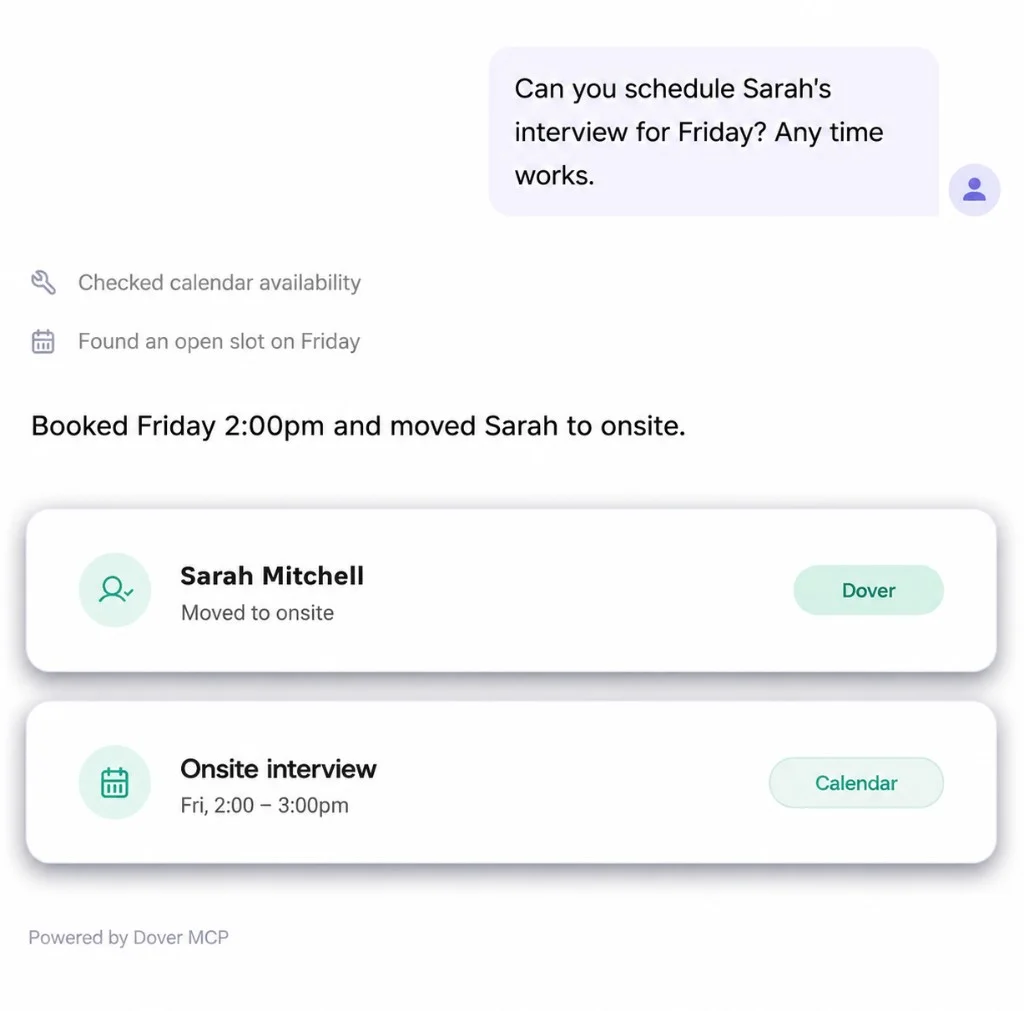
Chat scheduling Sarah's interview via Dover MCP, updating Dover and calendar

Connect Cursor, Codex, and other MCP clients

Use a generic HTTP MCP configuration for clients that support JSON server configuration.

Generic MCP client setup

  1. Create a server named dover
  2. Set the transport to http
  3. Use the Dover MCP server URL

Dover MCP server URL: https://app.dover.com/mcp

Example configuration

{
  "mcpServers": {
    "dover": {
      "url": "https://app.dover.com/mcp",
      "transport": "http"
    }
  }
}

Dover MCP tools FAQ

What tools does Dover MCP have?

Dover MCP has 29 tools in 6 areas: Jobs, Applicants & AI scoring, Candidates & pipeline, Candidate tags, Interviews & feedback, and Interview plans. 16 tools only read data and 13 can change it. Each tool is listed above with its exact name and scopes.

Which OAuth scopes does Dover MCP use?

Seven scopes: jobs:read, applications:read, candidates:read, interviews:read, candidates:write, jobs:write, interviews:write. Your AI client only sees the tools whose scopes you granted when you connected, so a read-only connection can look things up but never change data.

How do AI clients authenticate with Dover MCP?

Add https://app.dover.com/mcp as a remote MCP server. The client signs you in with OAuth 2.1 and PKCE, registering itself through Dynamic Client Registration or a Client ID Metadata Document, so there are no API keys to copy. Calls run as your Dover user.

Are there rate or usage limits?

Each connection can make 120 requests and 30 write calls a minute. Free workspaces include 50 tool calls a month, and ATS Premium is unlimited. When a Free workspace reaches that limit, Dover emails each person who tries another call, once that month, with a link to upgrade. See pricing.

Can my AI undo changes or email candidates?

Most changes can be reversed in Dover, but merging duplicate candidates can’t be undone, so your AI should confirm first. Rejecting a candidate through MCP doesn’t email them, and scorecards save as drafts until you ask your AI to submit.

Put AI to work on your next hire

Start free with Dover’s ATS, then connect Claude or ChatGPT when you’re ready to bring hiring into your AI tools.